
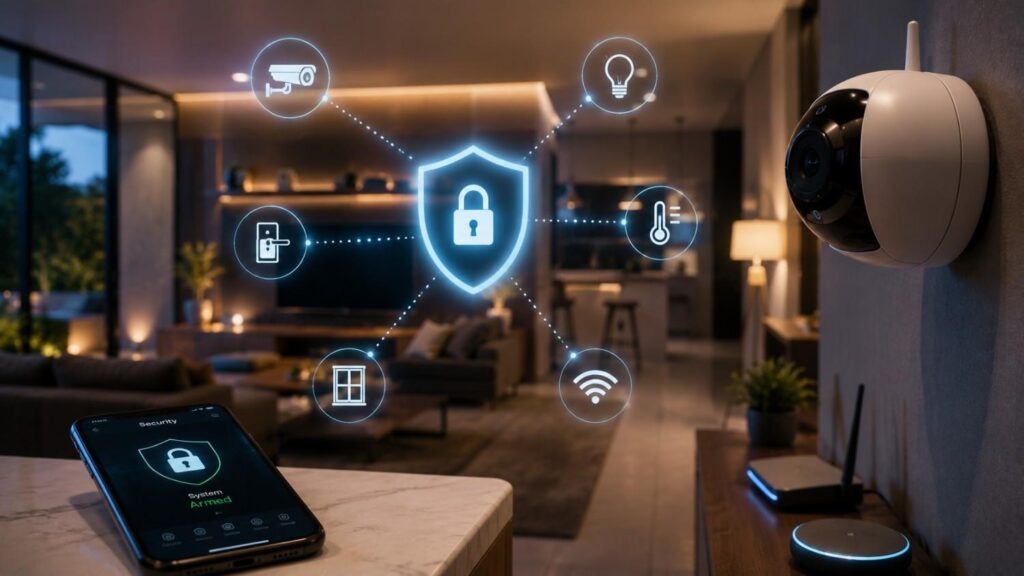
How to Secure Your Smart Home Against Cyber Threats
Smart home technology has changed the way people manage security, entertainment, energy use, household tasks, and everyday convenience. A connected thermostat can improve comfort, a smart doorbell can show who is outside, and a voice assistant can control lighting or appliances. However, every internet-connected product also creates another potential entry point that must be configured and maintained responsibly.
A smart home is not simply a collection of individual devices. It is an interconnected environment made up of hardware, mobile applications, Wi-Fi networks, cloud accounts, automation platforms, voice assistants, and third-party integrations. A weakness in one part of that environment may affect several other products, especially when passwords are reused or devices share the same unrestricted network.
Fortunately, effective smart home cybersecurity does not require advanced technical knowledge or expensive enterprise tools. The strongest approach is based on layers. You protect the router, strengthen user accounts, install updates, separate higher-risk devices, limit unnecessary access, review privacy settings, and monitor the system for unusual activity.
In my experience, the most common security problems are not caused by highly sophisticated attacks. They result from overlooked default passwords, forgotten devices, unsupported products, excessive account permissions, or remote-access features that were enabled during setup and never reviewed.
This guide explains how to secure your smart home against cyber threats using practical steps that beginners can follow while still providing enough depth for experienced users who want to improve network segmentation, access control, monitoring, and long-term device management.
Understand the Cybersecurity Risks in a Smart Home
Before you change passwords or adjust router settings, it is important to understand what a smart home actually includes and where its risks come from. Many homeowners think only about obvious security-related products such as cameras, doorbells, alarms, and locks. In reality, a smart television, printer, lighting hub, appliance, speaker, robotic vacuum, or connected garage-door controller can also communicate with the internet and store information about household routines.
The security boundary extends beyond physical devices. Mobile applications, cloud dashboards, email accounts, recovery phone numbers, voice profiles, automation services, and third-party integrations can all provide access to the connected home. A device may be physically secure but still vulnerable because its cloud account uses a weak password or because an old household member retains application access.
Smart home cyber threats also vary in severity. Some attacks may cause inconvenience, such as changing a thermostat setting or interrupting a speaker. Others may expose private video, reveal when people are away, disable an alarm, unlock a door, or provide access to sensitive information stored elsewhere on the network.
A useful starting point is to think in terms of assets, access, and consequences. Identify what each device can see, hear, record, control, or reveal. Then determine who can access it, how that access is authenticated, and what could happen if control were lost.
This risk-based approach helps you prioritize security work. Cameras, locks, routers, alarms, and administrator accounts usually deserve attention before low-impact products such as a single smart bulb.
What Counts as a Smart Home Device?
A smart home device is any household product that connects to the internet, communicates through a local network, or exchanges data with another connected system. Common examples include smart televisions, speakers, thermostats, cameras, video doorbells, plugs, lighting systems, locks, alarm panels, baby monitors, refrigerators, ovens, robotic vacuums, garage-door controllers, and irrigation systems. The UK National Cyber Security Centre includes many of these products within its guidance for connected devices in the home.
Some products connect directly to Wi-Fi, while others communicate through a hub using protocols such as Zigbee, Z-Wave, Thread, or Bluetooth. Even when a device does not connect directly to the internet, the hub or controller may use a cloud service, mobile application, or remote-access account.
Create a device inventory that records the product name, model, manufacturer, room, account owner, application, network, purchase date, and expected support period. Include hubs, bridges, routers, range extenders, and old products stored in cupboards but still connected.
One thing I always check first is the router’s list of connected clients. Compare that list with your inventory and investigate unfamiliar names. Device labels are sometimes unclear, so verify the hardware address or temporarily disconnect a product before assuming an unknown entry is malicious. A current inventory makes updates, troubleshooting, access reviews, and eventual replacement much easier.
How Do Cybercriminals Target Connected Devices?
Cybercriminals usually target connected devices through predictable weaknesses rather than attempting to break strong encryption directly. Common attack paths include default passwords, reused credentials, outdated firmware, exposed remote-management features, misconfigured routers, insecure cloud accounts, and applications that request more permissions than they need.
Credential stuffing is a frequent concern. If an email address and password are exposed in a breach involving an unrelated website, an attacker may test the same combination against smart camera, alarm, or voice-assistant accounts. This is why unique passwords and multi-factor authentication are essential.
Unpatched software creates another risk. Manufacturers release firmware updates to fix security weaknesses, but devices may remain vulnerable when automatic updates are disabled or support has ended. Some attackers scan the internet for exposed devices that still use known vulnerable software.
A compromised device may be used to spy on a household, change settings, disrupt service, collect personal information, or join a botnet. In other cases, the attacker may attempt to move from the vulnerable product to computers, storage devices, or other systems on the same network.
NIST approaches consumer IoT cybersecurity as a broader product issue that includes the physical device, supporting software, cloud services, and related applications. That perspective is valuable because protecting hardware alone is not enough. Every service that can control, update, or retrieve information from the device must also be secured.
Related Articles
- Top 10 Smart Home Devices to Buy in 2026
- Smart Home Automation Ideas to Simplify Your Daily Life
- Energy-Saving Hacks for Smart Home Owners
How to Secure Your Smart Home Against Cyber Threats at the Network Level
The home network is the foundation of a connected household because most smart products rely on it to communicate with applications, cloud platforms, hubs, and other devices. If the router is poorly configured, every product behind it may be exposed to unnecessary risk. For this reason, network-level protection should come before adjustments to individual appliances or applications.
A modern router performs several security functions. It authenticates wireless users, encrypts traffic, separates internal devices from the public internet, assigns local addresses, and often includes a firewall. Some models also support guest networks, device isolation, automatic updates, parental controls, intrusion alerts, or separate networks for Internet of Things products.
However, a router is not secure simply because it is new. Default administrator credentials, old firmware, weak encryption, remote-management features, and convenience settings can weaken an otherwise capable device. Internet service providers may also supply routers that remain in homes for many years without regular review.
Begin by logging into the router’s official administration interface. Confirm the model, firmware version, encryption mode, administrator account, connected devices, firewall status, and remote-access settings. Record the current configuration before making major changes.
Advanced users may choose VLANs, firewall rules, local DNS filtering, or network-monitoring tools. Beginners can still achieve a meaningful improvement by using strong encryption, changing defaults, creating a guest network, and disabling unnecessary services.
The objective is not to make the home network complex. It is to reduce unnecessary trust between devices and ensure that outsiders cannot easily access the wireless network or router controls.
Use Strong Wi-Fi Encryption and Change Default Settings
Your wireless network should use WPA3 Personal when the router and smart devices support it. WPA3 provides stronger protection than older Wi-Fi standards and improves resistance to certain password-guessing attacks. When older products cannot connect through WPA3, WPA2 Personal remains a reasonable compatibility option. WEP and the original WPA standard should not be used because they no longer provide adequate protection.
Replace the router’s default administrator username and password immediately. The administrator credentials control settings such as encryption, DNS servers, connected devices, port forwarding, and firmware updates. They must be different from the password used by household members to join the Wi-Fi network.
Choose a long, unique Wi-Fi password that is not reused for email, banking, social media, or smart home accounts. Avoid household names, addresses, phone numbers, pet names, or other information that could be guessed from public profiles.
You may also change the network name, known as the SSID, so it does not reveal the router model, household surname, or exact address. Hiding the SSID provides little meaningful security, but using a neutral name can reduce unnecessary personal disclosure.
The FTC recommends WPA3 or WPA2 encryption and unique router credentials as core home Wi-Fi protections. After changing these settings, reconnect devices carefully and update the saved password on every authorised phone, computer, hub, and smart product.
Separate Smart Devices from Personal Computers
Network separation reduces the amount of access one connected product has to other systems in the home. Instead of placing every device on the same unrestricted Wi-Fi network, create a guest network or dedicated IoT network for smart televisions, cameras, appliances, speakers, plugs, lighting hubs, and similar products.
Keep personal computers, work laptops, network storage, financial devices, and phones containing sensitive information on the primary network. If a poorly secured smart appliance is compromised, separation can make it harder for the attacker to reach higher-value systems directly.
Many consumer routers include a guest network that blocks connected clients from communicating with devices on the main network. Some also provide an option that prevents guest devices from communicating with one another. Advanced routers may support VLANs, separate firewall zones, or custom access rules.
Test the system after enabling separation. Certain products require local communication with a phone, hub, printer, speaker, or casting device. You may need to allow specific connections or keep a central hub on the primary network while isolating individual accessories.
An IoT guest network is not a substitute for passwords, updates, or secure accounts. It is an additional containment layer. The FTC also recommends guest networks because they reduce the number of people who need the primary Wi-Fi password and can limit the ability of an infected visitor’s device to reach sensitive systems.
Document which products use each network so future troubleshooting remains manageable.
Disable Unnecessary Router Features
Consumer routers often include convenience features that simplify installation or remote access. While these functions may be useful in specific situations, they can create unnecessary exposure when left enabled without a clear purpose.
Turn off remote router management unless you genuinely need to administer the network while away from home. If remote administration is essential, restrict access where possible, use multi-factor authentication, and follow the router manufacturer’s current security guidance.
The FTC also recommends disabling Wi-Fi Protected Setup and Universal Plug and Play when they are not required. WPS can simplify device connection, but some implementations have introduced security concerns. UPnP allows applications and devices to open network ports automatically, which may expose services without the homeowner fully understanding the change.
Review port-forwarding rules and remove any entry that is no longer needed. Check that the router firewall is enabled and avoid placing devices in a demilitarized zone unless you understand the risks. Enable automatic firmware updates where supported, or schedule a monthly manual check through the manufacturer’s official support page.
Disable unused services such as file sharing, media servers, or cloud administration. These functions increase the router’s attack surface and may expose household data.
Finally, replace the router when the manufacturer stops providing security updates. An unsupported router can undermine every other smart home security measure because it sits between your connected devices and the internet.
Protect Every Smart Device and Online Account
Once the network is secure, the next step is to protect the accounts and software that control each connected product. A smart device may have several separate access points, including a local administrator password, cloud account, mobile application, voice-assistant integration, recovery email address, and shared household profile. Each one should be reviewed.
Account security matters because many modern smart products are controlled primarily through cloud services. An attacker may not need direct access to your Wi-Fi if they can sign in to the manufacturer’s application from another location. Cameras, locks, alarms, and thermostats can often be controlled remotely through the same credentials used during initial setup.
Begin by identifying the main account associated with every product. Confirm that the email address is current, recovery information belongs to a trusted household member, and no unknown users have been invited. Remove old phones, inactive browser sessions, unused integrations, and former household members.
Use the principle of least privilege. Not everyone needs administrator rights. Some family members may only need permission to view a doorbell, change a thermostat, or operate a light. Separate profiles improve accountability and make it easier to revoke one person’s access without changing the entire household system.
You should also review how accounts are connected. A single voice assistant or automation platform may control products from several manufacturers. These integrations are convenient, but they can expand the impact of a compromised account.
The goal is to reduce the number of ways an attacker can reach the system while ensuring legitimate users retain the access they need.
Use Unique Passwords and Multi-Factor Authentication
Every smart home account should have a unique password that is not reused on another website, application, or device. Password reuse is especially dangerous because a breach involving an unrelated service may expose credentials that criminals can test against cameras, alarms, locks, speakers, and email accounts.
Use a reputable password manager to generate and store long, random credentials. A password manager removes the need to memorise every password and makes it practical to maintain a different one for each manufacturer. Avoid predictable substitutions, repeated patterns, family names, addresses, or common phrases.
Enable two-factor authentication or multi-factor authentication wherever it is offered. MFA requires an additional verification method, such as an authenticator application, hardware key, security prompt, or one-time code. An authenticator application or security key is generally preferable to text-message verification when the service supports stronger options.
Protect the email account connected to your smart home with equal care. Password-reset links, login warnings, device invitations, and security notices are often delivered there. If the email account is compromised, the attacker may be able to reset several smart home passwords.
The FTC recommends unique passwords and two-factor authentication for internet-connected products. After enabling MFA, save recovery codes in a secure location and update trusted phone numbers. Avoid sharing one administrator login across the household when the platform allows separate user profiles.
Install Firmware, App, and Security Updates
Firmware is the software built into a smart device, router, hub, camera, lock, speaker, or appliance. Manufacturers release firmware updates to correct bugs, improve compatibility, add features, and address known security weaknesses. Companion mobile applications and cloud services also require regular updates.
Enable automatic updates whenever the manufacturer provides that option. Automatic installation reduces the chance that an important patch will be delayed or forgotten. For products requiring manual updates, create a monthly routine that includes checking the official application, administration dashboard, or manufacturer support page.
Do not download firmware from unofficial forums, file-sharing websites, or unverified third-party pages. Malicious or incorrect files can damage the device or introduce additional security problems. Verify the model and hardware version before installing a manual update because similarly named products may use different firmware.
The NCSC advises users to activate automatic updates and respond to manual update prompts. It also warns that devices become easier to compromise when the manufacturer stops supporting them.
Record the expected support period in your device inventory. When a product reaches end of support, decide whether it can be safely isolated, disconnected from the internet, or replaced. Cameras, locks, routers, alarms, baby monitors, and products containing microphones deserve especially prompt replacement because their failure could affect privacy or physical security.
Limit Remote Access and Connected Services
Remote access allows you to control a device from outside the home, but it also increases the number of internet-facing services and accounts that must be protected. Disable remote access when a product is only used locally or when the benefit does not justify the additional exposure.
Review all services connected to each smart home account. These may include voice assistants, automation platforms, security monitoring providers, energy dashboards, home-sharing tools, and third-party applications. Remove integrations you no longer use and revoke permissions for applications you do not recognise.
Check active sessions and trusted devices within the manufacturer’s account settings. Sign out old phones, tablets, browsers, and computers. If a platform does not provide session information, changing the password may force older sessions to authenticate again.
Use separate household profiles where available. Give each person only the permissions needed for their role. A guest may need temporary access to a lock, while a caregiver may need alarm access during specific hours. Neither necessarily needs permission to add users, change security settings, or view every camera.
Review temporary access codes and scheduled permissions regularly. Delete expired codes rather than leaving them available indefinitely.
Limiting connected services also improves privacy. Every integration may receive information about device status, household routines, or user behaviour. Reducing unnecessary connections makes the environment easier to monitor, troubleshoot, and secure.
Secure Cameras, Voice Assistants, and Other Sensitive Devices
Not all connected products carry the same level of risk. A smart bulb can create inconvenience if compromised, but a camera, lock, baby monitor, alarm, or voice assistant may reveal private activity or influence physical access to the home. These sensitive devices deserve stronger controls and more frequent reviews.
Begin by considering what each product can collect or control. Cameras capture images and sound. Voice assistants may process spoken requests. Smart locks and garage controllers control entry. Thermostats, lighting systems, and energy monitors can reveal whether people are home. Robotic vacuums may create maps of interior spaces.
Placement is also important. A camera facing a public entrance creates a different privacy risk from one positioned inside a bedroom or living area. A voice assistant in a kitchen may hear different conversations from one located in a home office.
Review the manufacturer’s privacy policy, account options, recording settings, retention controls, sharing permissions, and law-enforcement request procedures where available. Disable features that are not necessary for the device’s intended purpose.
Physical controls add another layer. Camera shutters, microphone switches, privacy modes, and power controls can prevent recording when the product is not needed. These controls are especially useful in bedrooms, offices, nurseries, and rooms used for confidential conversations.
Sensitive devices should also be placed on separated networks, protected by MFA, updated promptly, and included in monthly access reviews.
| Smart Home Device | Primary Security Risk | Recommended Protection | Priority Level |
|---|---|---|---|
| Smart Cameras | Unauthorized video access | Unique password, MFA, firmware updates | High |
| Smart Locks | Unauthorized entry | Strong credentials, MFA, regular updates | High |
| Baby Monitors | Privacy breaches | Secure Wi-Fi, updated firmware, HTTPS access | High |
| Voice Assistants | Voice recording and account misuse | Review privacy settings, delete recordings, MFA | Medium |
| Smart TVs | Data collection and outdated software | Install updates, review permissions | Medium |
| Smart Plugs | Network access through vulnerabilities | Keep firmware updated, use guest network | Medium |
| Smart Lights | Unauthorized device control | Strong Wi-Fi security and unique passwords | Low |
| Smart Thermostats | Remote control misuse | Secure account, enable MFA, update firmware | Medium |
Protect Smart Cameras and Baby Monitors
Smart cameras and baby monitors require careful protection because unauthorised access may expose live video, recorded footage, audio, family routines, and the layout of private spaces. Begin by giving every camera account a unique password and enabling multi-factor authentication for the associated cloud service.
Keep the camera firmware, mobile application, web interface, hub, and storage service updated. Remove default accounts and confirm that anonymous viewing is disabled. Review the list of shared users, trusted devices, active sessions, and integrations, especially after a visitor, installer, caregiver, or former household member no longer needs access.
When using a browser to access video, confirm that the page uses HTTPS. The FTC advises consumers to look for encrypted connections and consider cameras that allow remote viewing to be disabled.
Position cameras carefully. Avoid recording bedrooms, bathrooms, changing areas, computer screens, confidential documents, or neighbouring private property. Use privacy zones where supported and disable audio recording when it is unnecessary.
Review storage settings as well. Determine whether footage is stored locally, in the cloud, or both, and understand how long recordings are retained. Delete old footage that no longer serves a security purpose.
Unexpected camera movement, activation lights, changed settings, or unfamiliar login alerts should be investigated immediately. Disconnect the camera if compromise is suspected and secure the account before reconnecting it.
Review Microphone, Location, and Data Settings
Voice assistants, smart televisions, security applications, speakers, cameras, and automation platforms may request access to microphones, location data, contacts, photographs, Bluetooth connections, calendars, or other information. Some permissions are necessary for core functions, while others support optional features that you may never use.
Review permissions through both the smart device application and the phone’s operating-system settings. Disable access that is unrelated to the product’s purpose. For example, a lighting application may need local-network access but may not require contacts, photographs, or precise location data after setup.
Check whether voice recordings, search history, camera clips, activity logs, or household routines are stored in the cloud. Many platforms provide controls for automatic deletion, manual review, voice-history removal, or personalised advertising. Select the shortest retention period that still supports your needs.
The FTC recommends reviewing application permissions and disabling access that is not required. This practice reduces unnecessary data collection and limits what may be exposed if an account is compromised.
Use physical mute switches, camera covers, or privacy modes when microphones and cameras are not needed. Physical controls provide reassurance because they do not depend solely on software settings.
Also review guest profiles and voice purchasing. Disable purchases by voice or require confirmation if children, visitors, or television audio could trigger unintended actions.
Monitor Your Smart Home and Respond to Warning Signs
Strong setup practices are essential, but smart home cybersecurity cannot be completed once and forgotten. Devices change over time. Manufacturers release updates, support periods end, household members gain or lose access, and new integrations are added. A system that was secure two years ago may now contain unsupported products or outdated permissions.
Routine monitoring does not need to be complicated. A short monthly review can include checking the router’s connected-device list, confirming updates, reviewing login alerts, examining shared users, and removing unused applications. A more detailed review every six months should examine support status, network design, account recovery information, privacy permissions, and the continued need for every connected product.
Enable security notifications when manufacturers provide them. Useful alerts may include new logins, password changes, unfamiliar devices, disabled cameras, new users, firmware updates, or changes to alarm and lock settings. Treat unexpected notifications seriously, especially when several occur close together.
Advanced users may monitor DNS requests, network traffic, device bandwidth, firewall logs, or local connection attempts. These tools can help identify devices communicating with unexpected services, although they require careful interpretation.
Monitoring should focus on meaningful changes rather than creating constant anxiety. A temporary disconnection or failed update does not automatically mean a product has been hacked. Look for patterns, unexplained configuration changes, unknown accounts, or activity that does not match household behaviour.
A documented response plan will help you act calmly when something appears wrong.
Use a Practical Smart Home Security Checklist
A checklist turns broad cybersecurity advice into repeatable household tasks. It also ensures that important controls are not forgotten when new devices are installed or when responsibility is shared between several people.
Use the following table as a starting point and adjust the review frequency according to the sensitivity of each product.
| Security Control | Recommended Action | Threat Reduced | Review Frequency |
|---|---|---|---|
| Router encryption | Use WPA3 or WPA2 Personal | Wi-Fi interception and unauthorised network access | Every six months |
| Router credentials | Replace default administrator and Wi-Fi passwords | Router takeover and configuration changes | During setup and after suspected exposure |
| Device passwords | Use a unique password for every account | Credential stuffing and password reuse | During setup and after a breach alert |
| Multi-factor authentication | Enable MFA on device, cloud, and recovery email accounts | Remote account takeover | During setup and quarterly |
| Network separation | Use a guest or dedicated IoT network | Movement between connected systems | During setup and after router changes |
| Firmware updates | Enable automatic updates where possible | Exploitation of known weaknesses | Monthly |
| Remote access | Disable external access that is not required | Internet-based intrusion | Quarterly |
| Device inventory | Review every connected client | Hidden, forgotten, or unauthorised devices | Monthly |
| Privacy permissions | Remove unnecessary application and sensor access | Excessive data collection | Quarterly |
| Support status | Replace products that no longer receive updates | Persistent unpatched vulnerabilities | Every six months |
Assign responsibility for the checklist so tasks are not assumed to be someone else’s job. Record major changes, replacement dates, and unresolved issues.
Watch for Signs of a Compromised Device
A compromised smart home product does not always display an obvious warning. Some attackers attempt to remain unnoticed, while others cause visible changes such as camera movement, altered settings, repeated disconnections, or unfamiliar voice-assistant activity.
Potential warning signs include unknown user accounts, unexpected password-reset emails, new login alerts, unusual device names in the router dashboard, unexplained changes to automation routines, increased data usage, disabled security settings, or recordings accessed at unusual times. Smart locks may show unknown codes, while cameras may display changed angles or activated microphones.
Technical problems can have innocent causes. Weak Wi-Fi, faulty hardware, software bugs, cloud outages, and expired subscriptions may produce similar symptoms. Investigate methodically instead of assuming every failure is an attack.
Begin by reviewing the manufacturer’s application, active sessions, login history, shared users, device settings, and recent updates. Compare router data usage with normal household behaviour. Search the manufacturer’s official security notices for known issues affecting the model.
Several unexplained changes occurring together deserve immediate attention. For example, a changed password combined with a new administrator account and unfamiliar remote session is more concerning than a single temporary disconnection.
Keep screenshots or notes when investigating. Accurate records can help the manufacturer, internet provider, security professional, or law-enforcement agency understand what happened.
What Should You Do If a Smart Device Is Hacked?
If you believe a smart device has been compromised, disconnect it from the network or unplug it when doing so is physically safe. Do not reset it immediately if you may need logs, screenshots, or other information for an investigation.
Using a trusted phone or computer, change the password for the affected account and any other account that used the same credentials. Enable multi-factor authentication, revoke unknown sessions, remove unfamiliar users, and secure the connected email account. If payment information is involved, review the relevant financial account for unauthorised activity.
Check the manufacturer’s official support page for security notices, firmware updates, and recovery instructions. Install current software and perform a factory reset when recommended. The NCSC advises contacting the manufacturer and resetting a device if someone may have taken control of it.
Review the router as well. Change administrator and Wi-Fi passwords, remove unknown devices, inspect port-forwarding rules, update the firmware, and confirm that remote management remains disabled.
Reconnect the device only after the hardware, application, cloud account, and network have been secured. If the product is unsupported or the cause of the compromise cannot be resolved, replace it rather than returning it to normal use.
For serious incidents involving stalking, threats, financial theft, or physical access, preserve evidence and contact the appropriate local authorities or cybersecurity support service.
Buy, Share, and Retire Smart Devices Safely
Long-term IoT security begins before a device enters the home. The purchase decision determines how long the product may receive updates, which privacy controls are available, whether MFA is supported, and how easily access can be managed. A cheap product may create a higher long-term cost if it quickly becomes unsupported or cannot be separated from a previous owner’s account.
Security information should be part of the buying process, just like compatibility, features, and price. Look for a clear support policy, automatic updates, vulnerability-reporting process, encryption, multi-user access, MFA, local-control options, and transparent privacy settings.
Device sharing also needs structure. Installers, contractors, tenants, cleaners, caregivers, guests, and family members may require different levels of access at different times. Shared administrator passwords make it difficult to understand who changed a setting or to remove one person without disrupting everyone.
The end of a device’s life is equally important. Cameras, speakers, routers, hubs, televisions, and appliances may retain Wi-Fi credentials, recordings, account tokens, personal preferences, or location information. Selling or donating a product without removing that information can expose the former owner.
Create a lifecycle process covering purchase, setup, use, sharing, maintenance, and disposal. Record the purchase date and support period in the device inventory, review access when household circumstances change, and follow the manufacturer’s reset instructions before a product leaves the home.
This lifecycle approach prevents security from becoming an afterthought.
| Smart Home Stage | Recommended Security Action | Why It Matters |
|---|---|---|
| Before Buying | Choose devices with long-term security updates and MFA support | Reduces future security risks |
| During Installation | Change default passwords and configure secure Wi-Fi | Prevents easy unauthorized access |
| Daily Use | Keep firmware and apps updated | Protects against newly discovered vulnerabilities |
| Monthly Maintenance | Review connected devices and account activity | Detects suspicious behavior early |
| User Management | Remove unused accounts and unnecessary permissions | Limits unauthorized access |
| Device Replacement | Factory reset and remove linked accounts | Protects personal data before resale or disposal |
| Unsupported Devices | Replace products no longer receiving updates | Eliminates unpatched security risks |
Check Security Support Before Buying
Before purchasing a connected product, research how the manufacturer handles security over the device’s expected lifetime. Look for a published update policy, minimum support period, vulnerability-disclosure process, privacy policy, and official support contact.
Prioritise products that support automatic updates, multi-factor authentication, encrypted communication, separate user profiles, access logs, and clear privacy controls. A manufacturer should explain how long the product will receive security patches and what happens when support ends.
Review whether the device depends entirely on a cloud service. Cloud features can provide convenience, but a product may lose important functionality if the service closes or the manufacturer discontinues the model. Local control can improve resilience, although it must still be configured securely.
Check independent security reviews carefully, but confirm important claims through official documentation. Avoid products with unclear branding, no support website, copied applications, or firmware that can only be downloaded from unofficial sources.
The NCSC advises consumers to avoid devices that are already unsupported or approaching the end of their support period. This is especially important for cameras, routers, locks, alarms, baby monitors, and products with microphones.
I recommend treating the support period as part of the true purchase price. A slightly more expensive product that receives updates for several years may offer better value than a cheaper device requiring early replacement.
Also confirm compatibility with WPA3, network separation, your chosen smart home platform, and the security features already used in the household.
Remove Access When Someone Leaves the Household
Smart home access should change whenever the household changes. Former tenants, partners, caregivers, cleaners, contractors, installers, guests, and employees may retain application accounts, lock codes, voice profiles, camera-sharing permissions, alarm credentials, or access to automation platforms.
Use named user accounts rather than sharing one administrator login. Separate accounts make activity easier to identify and allow one person’s access to be removed without changing credentials for the entire household.
When someone no longer needs access, review every relevant system rather than assuming that removing one application is sufficient. Check smart locks, garage doors, alarm panels, cameras, doorbells, voice assistants, Wi-Fi networks, energy systems, home-sharing platforms, and third-party automations.
Delete temporary entry codes and scheduled permissions. Remove old phones and browser sessions from trusted-device lists. If the departing person knew the main administrator password or primary Wi-Fi password, change those credentials as well.
Consider physical access. A former resident may still possess traditional keys, backup codes, security tokens, or printed recovery information. Digital access removal is only one part of a complete transition.
Document the review so that important systems are not overlooked during a stressful move or staffing change. For rental properties or businesses operating from connected premises, a formal access-removal checklist is particularly valuable.
Regular access reviews also help identify accounts belonging to people who left months or years earlier.
Reset Devices Before Selling or Disposing of Them
Connected products may retain more information than users expect. A smart camera can store recordings and Wi-Fi credentials, a speaker may contain voice history and account tokens, a television can remain signed in to streaming services, and a router may store network names, passwords, DNS settings, and device information.
Before selling, donating, recycling, or returning a product, remove it from all manufacturer accounts and smart home platforms. Delete local recordings, cloud data, user profiles, schedules, access codes, and connected services where possible.
Follow the official factory-reset procedure for the exact model. A restart is not the same as a factory reset. Some products require a button sequence, application command, account removal, or verification process before personal data is fully cleared.
After resetting, confirm that the device no longer appears in the mobile application, automation platform, voice assistant, router dashboard, or trusted-device list. Revoke remaining account tokens and remove subscriptions linked to the product.
The FTC recommends resetting connected devices and reviewing privacy settings when buying or selling a smart home. This guidance also applies to individual products.
When moving house, remember that built-in thermostats, locks, cameras, alarms, and hubs may remain with the property. Transfer ownership through the manufacturer’s official process rather than simply giving the new occupant a shared password.
If a device cannot be reset securely or remains connected to an unavailable account, contact the manufacturer before transferring it.
Quick Answer About How to Secure Your Smart Home Against Cyber Threats
Learning how to secure your smart home against cyber threats starts with protecting the systems that connect and control your devices. Secure the router by replacing its default administrator credentials, using WPA3 or WPA2 encryption, enabling its firewall, and installing firmware updates. Every smart device and associated cloud account should also have a unique password, while multi-factor authentication should be enabled wherever the manufacturer supports it.
Place cameras, speakers, appliances, plugs, televisions, and other connected products on a guest or dedicated IoT network when possible. This separation can limit the damage if one product is compromised. Disable remote access, voice features, microphones, integrations, and data permissions that you do not actively use.
You should also maintain an inventory of every connected device in the home. Review that list regularly, remove unknown connections, and replace products that no longer receive security updates. Pay particular attention to smart locks, security cameras, baby monitors, alarms, and voice assistants because these devices can expose private information or control physical access.
Smart home security is most effective when it is treated as an ongoing process. A brief monthly review of updates, connected devices, account activity, permissions, and shared users can prevent small oversights from turning into serious security problems.
Frequently Asked Questions
The following questions reflect common concerns from homeowners who want practical ways to improve smart home security without becoming network specialists. The answers focus on actions that provide meaningful protection while remaining realistic for everyday households.
No single setting can eliminate all risk. Smart home cybersecurity depends on several controls working together, including secure Wi-Fi, unique passwords, MFA, software updates, network separation, careful permissions, and regular monitoring. The importance of each control depends on what the device does and what information it handles.
For example, a smart lock or indoor camera should receive more attention than a decorative lighting product because the consequences of compromise are more serious. However, even low-impact products should not use default passwords or unsupported software because they still connect to the wider environment.
Beginners should start with the router and primary accounts. Advanced users can add VLANs, custom firewall rules, local monitoring, DNS filtering, or more detailed access controls after the essential protections are in place.
These answers are written in natural language so they can also support voice search and answer-engine visibility. They may be expanded into separate supporting articles when a topic requires product-specific instructions or a more technical explanation.
Can Smart Home Devices Be Hacked?
Yes, smart home devices can be hacked or accessed without authorisation. The risk usually comes from weak passwords, reused credentials, outdated firmware, insecure cloud accounts, exposed remote-access features, or a poorly configured router.
The likelihood and impact vary by product. A compromised smart plug may be disruptive, while unauthorised access to a camera, lock, alarm, or baby monitor can create serious privacy and safety concerns.
You can reduce the risk by replacing default credentials, creating a unique password for every account, enabling multi-factor authentication, installing updates, and separating IoT devices from personal computers. Disable remote access and integrations that you do not need.
It is also important to buy products from manufacturers that publish clear security-support policies. Unsupported devices may remain vulnerable because newly discovered problems are no longer corrected.
No connected product can be guaranteed completely immune from attack. The goal is to reduce the chance of compromise, limit what an attacker could reach, and recognise suspicious activity quickly. Layered controls make a smart home considerably harder to target than one relying on default settings.
Should Smart Home Devices Be on a Guest Network?
Yes, placing smart devices on a guest or dedicated IoT network is generally a good security practice when the router supports it. Separation prevents many connected products from communicating directly with personal computers, work laptops, network storage, and other higher-value systems.
This approach can limit the damage if a smart appliance, camera, television, or plug is compromised. The attacker may gain control of that device without gaining easy access to everything else on the network.
However, some products require local communication with a phone, hub, printer, speaker, casting device, or automation controller. After moving devices to a separate network, test all important functions. You may need to adjust isolation settings or allow a limited connection between specific systems.
A guest network does not replace other protections. Every product still needs a unique password, current firmware, secure account, and minimal permissions.
Use a separate password for the IoT network and avoid sharing the primary Wi-Fi credentials with visitors. Maintain a record of which devices belong on each network so troubleshooting remains straightforward.
For advanced setups, VLANs and firewall rules provide more control than a standard guest network, but a well-configured guest network is a strong starting point for most households.
Is WPA3 Better Than WPA2 for Smart Home Security?
WPA3 is the newer Wi-Fi security standard and should generally be used when the router and connected devices support it. It improves protection against certain password-guessing attacks and introduces stronger security mechanisms than earlier standards.
Some older smart home devices cannot connect to a WPA3-only network. In that situation, WPA2 Personal remains an acceptable compatibility option when it is configured with a long, unique Wi-Fi password. Avoid WEP and the original WPA standard because they are outdated and no longer provide adequate protection.
Many routers offer a transitional mode that supports both WPA2 and WPA3. This can help older products remain connected while newer devices use WPA3. However, review the router manufacturer’s instructions because transitional configurations may vary.
Wireless encryption protects communication between devices and the router, but it does not secure a weak cloud account or outdated product. You still need unique passwords, MFA, firmware updates, network separation, and careful access controls.
The FTC recommends using WPA3 or WPA2 encryption for home networks. Check the router administration page to confirm the active security mode rather than assuming the strongest option was enabled automatically during installation.
How Often Should I Update Smart Home Devices?
Enable automatic updates whenever the manufacturer offers them. Automatic installation is the most reliable approach because security patches can be applied without waiting for the homeowner to remember a manual check.
For products that require manual updates, review them at least once a month. Check the official application, device dashboard, or manufacturer support page. Pay immediate attention to security alerts, urgent update notices, or reports of actively exploited vulnerabilities.
Update the entire supporting environment, not only the physical device. This includes the router, hub, bridge, mobile application, voice assistant, operating system, browser, and any local server used for automation.
Every six months, review whether each manufacturer still supports the product. A device can appear to function normally while no longer receiving security fixes. Unsupported routers, cameras, locks, alarms, and baby monitors should be replaced promptly or disconnected from the internet.
Do not install firmware from unofficial download sites or forum links. Confirm the product model and hardware version before performing a manual installation.
After a major update, check important settings. Some products may change permissions, enable new features, or require reauthentication. Verify that remote access, recordings, integrations, and shared users still match your preferences.
Do Smart Home Devices Need Multi-Factor Authentication?
Multi-factor authentication is strongly recommended for smart home services, particularly those controlling cameras, locks, alarms, hubs, garage doors, voice assistants, and cloud recordings. MFA requires an additional verification step beyond the password, making remote account takeover more difficult.
Enable MFA on every service that supports it, not only the highest-risk device. A lower-profile account may still connect to a central automation platform or voice assistant that controls several products.
Protect the recovery email account with MFA as well. If an attacker gains access to that inbox, they may be able to reset smart home passwords, approve new devices, or hide security warnings.
Authenticator applications and hardware security keys generally provide stronger protection than text-message codes, although any supported MFA method is better than relying on a password alone. Save recovery codes securely and ensure trusted phone numbers remain current.
MFA cannot protect against every threat. It does not correct outdated firmware, insecure network settings, excessive permissions, or a compromised device. It should be combined with unique passwords, regular updates, network separation, and access reviews.
When a manufacturer does not offer MFA for a sensitive product, consider whether another product provides better long-term security.
What Is the Most Important Smart Home Security Step?
Securing the router is usually the best first step because most connected products depend on it to reach the internet, cloud services, applications, and other devices. A weak router can undermine otherwise secure smart home products.
Use WPA3 or WPA2 Personal encryption, replace the default administrator credentials, create a long Wi-Fi password, enable the firewall, install current firmware, and disable unnecessary remote-management features. Review the connected-device list and remove unknown clients.
After securing the router, protect the primary smart home and recovery email accounts with unique passwords and multi-factor authentication. These accounts may control several products at once, making them high-value targets.
The next priority is network separation. Place IoT products on a guest or dedicated network so they cannot freely communicate with personal computers and sensitive storage systems.
No single step is sufficient on its own. The router is the foundation, but accounts, devices, applications, permissions, integrations, and user access must also be managed.
For beginners, the recommended order is router security, account protection, automatic updates, network separation, permission reviews, and regular monitoring. This sequence addresses the most common weaknesses without making the setup unnecessarily complicated.
Conclusion
Smart home technology can provide meaningful convenience, energy savings, accessibility, entertainment, and physical security, but it must be managed as an interconnected digital environment. Every camera, lock, speaker, appliance, hub, application, account, and integration becomes part of the home’s overall security posture.
The most effective strategy is layered protection. Begin with the router, use modern Wi-Fi encryption, change default credentials, install updates, and separate IoT products from sensitive computers. Then protect every cloud account with a unique password and multi-factor authentication.
Privacy controls deserve equal attention. Disable unnecessary microphones, remote access, location permissions, recordings, integrations, and shared users. Higher-risk devices such as cameras, baby monitors, alarms, locks, and garage controllers should receive more frequent reviews.
Smart home security also requires maintenance. Keep an inventory, monitor connected devices, investigate unusual activity, review support periods, and replace products that no longer receive security patches. When someone leaves the household or a device is sold, revoke access and complete a proper factory reset.
Learning how to secure your smart home against cyber threats is not about creating a perfect or impenetrable system. It is about reducing avoidable weaknesses, limiting the consequences of a compromised product, and ensuring that suspicious activity can be recognised and addressed quickly.
A few carefully managed controls provide far more protection than dozens of security features that are enabled once and never reviewed.
Key Takeaway
The key to smart home cybersecurity is treating the connected home as one system rather than a collection of unrelated products. The router, applications, cloud accounts, user profiles, recovery email, devices, and automation platforms all influence one another.
Start with the highest-impact controls. Secure the router, use unique passwords, enable MFA, install updates, separate IoT products, and remove unnecessary remote access. These measures address many of the most common paths used to compromise smart devices.
Maintain a current inventory so you know what is connected, who owns each account, and whether the manufacturer still provides security support. Unknown or forgotten products should not remain permanently connected to the network.
Review access whenever household circumstances change. Remove former residents, temporary guests, contractors, caregivers, old phones, expired lock codes, and unused third-party services.
Finally, recognise that security is an ongoing routine rather than a one-time setup task. A short monthly review can identify outdated software, unfamiliar devices, changed permissions, and unsupported products before they create a larger problem.
The best approach to how to secure your smart home against cyber threats is consistent, layered, and proportionate to the sensitivity of each device.
Take the Next Step
Begin with a focused security review rather than trying to change every setting at once. Log in to the router and confirm the encryption mode, administrator password, firmware version, firewall status, connected-device list, and remote-management settings.
Next, secure the main smart home accounts and recovery email. Replace reused passwords, enable multi-factor authentication, and remove old sessions or unfamiliar users. Move smart devices to a guest or dedicated IoT network where practical.
Create a simple inventory containing the device name, manufacturer, account owner, application, network, purchase date, and support period. This document will make future updates, access reviews, troubleshooting, and replacements much easier.
Schedule a monthly reminder to review firmware updates, connected devices, login alerts, shared users, privacy permissions, and temporary access codes. Complete a more detailed support and lifecycle review every six months.
Do not ignore unsupported products simply because they still work. Disconnect or replace devices that no longer receive security updates, particularly routers, locks, cameras, alarms, and baby monitors.