
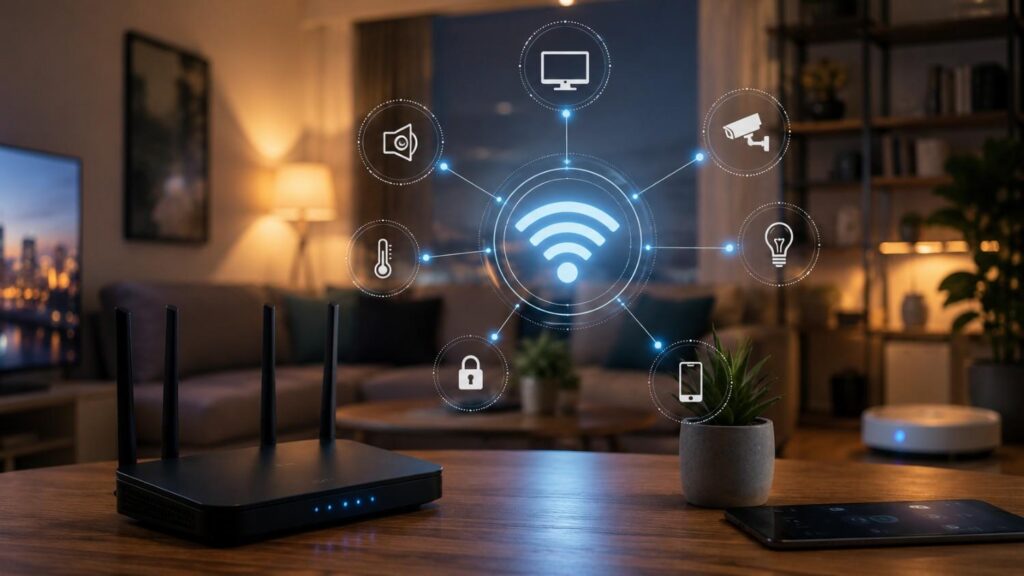
How to Optimize Wi-Fi for Your Smart Home Devices
A smart home should make daily life easier, not more frustrating. When your lights respond late, cameras buffer, doorbells disconnect, smart speakers freeze, or thermostats fail to sync, the problem is often not the smart device itself. In many homes, the real issue is a weak, crowded, or poorly configured Wi-Fi network. That is why learning How to Optimize Wi-Fi for Your Smart Home Devices is one of the most important steps before adding more connected products.
Smart home devices rely on stable connectivity, consistent coverage, and proper network settings. A single router placed in the wrong location may work fine for phones and laptops but struggle with outdoor cameras, garage sensors, upstairs bulbs, and far-corner smart plugs. As your connected device count grows, small Wi-Fi weaknesses become more visible.
In my experience, the best smart home Wi-Fi setup is not always the most expensive one. It is the setup that matches your home layout, device types, internet usage, and security needs. A small apartment may only need better router placement and cleaner settings. A larger home may need mesh Wi-Fi, wired backhaul, or separate networks for IoT devices.
This guide explains How to Optimize Wi-Fi for Your Smart Home Devices in a practical, beginner-friendly, and professional way. You will learn how to choose the right Wi-Fi band, improve router placement, reduce congestion, use mesh systems correctly, secure your smart home network, and troubleshoot the most common smart device connection problems.
Build a Strong Wi-Fi Foundation First
Before adjusting advanced router settings, the first step is to build a strong Wi-Fi foundation. Many smart home issues happen because the network was never designed for multiple connected devices in the first place. A router installed years ago for basic browsing may not perform well when it has to support security cameras, streaming devices, phones, laptops, smart speakers, thermostats, door locks, plugs, and sensors at the same time.
A reliable smart home Wi-Fi setup starts with three things: a healthy internet connection, a capable router, and proper signal coverage. If any of these are weak, your devices may disconnect even if the smart products themselves are working correctly. This is especially important for cameras, video doorbells, and voice assistants because they need steady response times and may require more bandwidth than simple bulbs or sensors.
One thing I always check first is whether the issue affects the whole home or only specific areas. If every device is slow, the problem may be the internet plan, router, modem, or network congestion. If only the garage camera or upstairs smart plug disconnects, the problem is likely weak coverage. This simple distinction saves time and prevents unnecessary device replacement. A good foundation also makes future upgrades easier because you can add more smart devices without creating new performance issues.
Check Your Internet Speed and Router Health
Start by testing your internet speed near the router, then test again in the rooms where smart devices are installed. This comparison helps you understand whether your issue is caused by the internet provider or by Wi-Fi coverage inside the home. If the speed is strong near the router but weak in bedrooms, outdoor areas, hallways, or upstairs rooms, the problem is usually signal loss rather than the internet plan itself.
Router health also matters. Restart the modem and router, check the router’s firmware version, and review how many devices are connected. Some older routers can technically support many devices but still struggle when multiple cameras, streaming devices, and phones are active at the same time. If your router frequently freezes, needs manual restarts, or fails to show connected devices correctly, it may be overloaded or outdated.
Look inside the router app or admin dashboard if available. Many modern routers show connected devices, signal quality, network usage, and security settings. Remove devices you no longer recognize, rename important devices for easier tracking, and check whether your router supports features like WPA3, guest networks, band steering, and automatic firmware updates. This gives you a clearer picture of whether your current equipment is suitable for a modern smart home.
Place Your Router in the Right Location
Router placement can make a major difference in smart home performance. A router should ideally sit in a central, open, elevated position where the signal can travel more evenly throughout the home. Placing it near the floor, inside a cabinet, behind a television, next to metal objects, or in a far corner can reduce signal quality and create dead zones. Google’s Wi-Fi placement guidance recommends keeping Wi-Fi devices in plain view and placing mesh points no more than a couple of rooms apart for better performance.
Think of Wi-Fi like sound. If you hide a speaker inside a cupboard, the sound becomes weaker and less clear. Wi-Fi behaves in a similar way when it passes through walls, furniture, appliances, mirrors, and floors. A router placed in the living room may easily cover nearby devices but may struggle with a smart camera outside the front door or a smart plug in the garage.
For best results, place the router close to the center of the area where most smart devices are used. Avoid putting it directly beside cordless phones, microwave ovens, large speakers, thick concrete walls, or electrical panels. If your internet cable enters the home in a poor location, consider using a longer Ethernet cable or mesh system instead of accepting weak coverage as normal.
Avoid Physical Barriers and Interference
Physical barriers and interference are two of the most common reasons smart home devices keep disconnecting. Thick walls, reinforced concrete, metal doors, mirrors, aquariums, large appliances, and even dense furniture can weaken Wi-Fi signals. Outdoor devices can be even more sensitive because the signal may need to pass through exterior walls, glass, brick, or metal framing before reaching the camera, doorbell, or sensor.
Interference is also important, especially on the 2.4 GHz band. Many household devices use or affect the 2.4 GHz range, including microwaves, baby monitors, cordless phones, Bluetooth devices, and older wireless accessories. This does not mean 2.4 GHz is bad. In fact, it is often the best band for many smart home devices. However, it can become crowded in apartments, condos, and homes with many nearby networks.
Before installing a smart camera, doorbell, or outdoor sensor permanently, test the Wi-Fi signal at the exact installation point. Open the device app if it shows signal strength, or use your phone to check connection quality near the location. If the signal is weak, adjust the router, add a mesh node, move the device slightly, or consider a wired alternative before drilling holes or mounting hardware.
Choose the Best Wi-Fi Band for Each Smart Device
Choosing the right Wi-Fi band is a major part of How to Optimize Wi-Fi for Your Smart Home Devices. Many users assume the fastest band is always the best, but smart homes do not work that way. A smart bulb, plug, or temperature sensor usually does not need high speed. It needs stable range, simple connectivity, and low power usage. A smart TV or security camera, on the other hand, may need more bandwidth and lower latency.
Most modern routers support 2.4 GHz and 5 GHz, while newer routers may also support 6 GHz through Wi-Fi 6E or Wi-Fi 7. Each band has a different purpose. The 2.4 GHz band travels farther but offers lower speeds. The 5 GHz band is faster but does not travel as far. The 6 GHz band can provide very fast performance for compatible devices, but it has shorter range and requires newer hardware. Intel summarizes this clearly: 2.4 GHz offers longer range at lower data rates, while 5 GHz and 6 GHz offer faster speeds.
The goal is not to place every device on one band. The better strategy is to match each device with the band that fits its job. This improves reliability, reduces congestion, and helps your router manage smart home traffic more efficiently.
| Smart Home Device | Recommended Wi-Fi Band | Why This Band Works Best |
|---|---|---|
| Smart Bulbs | 2.4 GHz | Better range and broad compatibility with most IoT devices. |
| Smart Plugs | 2.4 GHz | Reliable connection over longer distances with low bandwidth needs. |
| Motion Sensors | 2.4 GHz | Stable connectivity with minimal power consumption. |
| Smart Thermostats | 2.4 GHz | Maintains a dependable connection throughout the home. |
| Video Doorbells | 5 GHz (or 2.4 GHz if far away) | 5 GHz offers smoother video, while 2.4 GHz provides better range. |
| Indoor Security Cameras | 5 GHz | Supports higher bandwidth for HD video streaming. |
| Outdoor Cameras | 2.4 GHz or Mesh Coverage | Better signal penetration for longer distances. |
| Smart TVs | 5 GHz or 6 GHz | Delivers faster speeds for streaming and media playback. |
| Smart Speakers | 2.4 GHz or 5 GHz | Either band works depending on signal strength and location. |
| Smart Home Hub | Ethernet or 5 GHz | A wired connection is ideal; otherwise, use a strong 5 GHz signal. |
Use 2.4 GHz for Range and Compatibility
The 2.4 GHz band is often the best option for low-bandwidth smart home devices. Smart bulbs, smart plugs, motion sensors, thermostats, garage door controllers, and many basic IoT devices are designed to work on 2.4 GHz because it offers better range and wider compatibility. This is especially useful for devices installed far from the router, behind walls, or in areas where speed is less important than consistency.
Many smart devices still do not support 5 GHz or 6 GHz. That is why setup may fail when your phone is connected to a 5 GHz network while the device is trying to join 2.4 GHz. In those cases, temporarily connecting your phone to 2.4 GHz or using a router app that supports smart device setup can solve the issue.
However, 2.4 GHz can become crowded. Nearby routers, Bluetooth devices, microwaves, and older wireless equipment can all add interference. To improve stability, keep low-data smart devices on 2.4 GHz, but avoid putting high-bandwidth devices like streaming boxes and computers on the same band when 5 GHz is available. This keeps the 2.4 GHz band cleaner for the devices that actually need its range.
Use 5 GHz or 6 GHz for High-Bandwidth Devices
The 5 GHz band is usually better for devices that need faster speeds and are located closer to the router. Smart TVs, streaming boxes, gaming consoles, laptops, tablets, and some indoor security cameras can benefit from 5 GHz because it supports higher data rates than 2.4 GHz. If a smart camera is close enough to the router or mesh node, 5 GHz may reduce buffering and improve live-view performance.
The 6 GHz band is newer and is mainly available on Wi-Fi 6E and Wi-Fi 7 routers and compatible devices. Cisco explains that Wi-Fi 6E extends Wi-Fi 6 into the 6 GHz spectrum, helping compatible devices access additional capacity and reduce congestion. For smart homes with many modern devices, 6 GHz can be useful, but it should not be treated as a requirement for every setup.
The key is distance. A device close to the router may perform better on 5 GHz or 6 GHz, while a device farther away may be more stable on 2.4 GHz. If a camera or smart display performs poorly on 5 GHz, test it on 2.4 GHz before assuming the device is faulty.
Understand Band Steering and Split Networks
Many modern routers use band steering, which means they show one Wi-Fi name and automatically move devices between 2.4 GHz, 5 GHz, and sometimes 6 GHz depending on compatibility, distance, signal quality, and router logic. This can make Wi-Fi easier for beginners because you do not have to manually choose a network for every device. Google Nest Wifi, for example, uses one Wi-Fi name across supported bands and attempts to select the best connection for each device.
However, band steering can sometimes confuse smart home setup. Some IoT devices only support 2.4 GHz and may not pair properly if the phone or app is connected through a different band. In that situation, a temporary setup workaround may be needed, such as moving closer to the router, disabling 5 GHz during setup if your router allows it, or using a separate 2.4 GHz SSID.
Advanced users may prefer split networks, where 2.4 GHz and 5 GHz have separate names. This gives more control but requires more management. Beginners may prefer one network name with band steering. The best choice depends on your router, device compatibility, and how comfortable you are managing network settings.
Reduce Wi-Fi Congestion in a Smart Home
Wi-Fi congestion happens when too many devices compete for the same wireless space. This is common in modern homes because almost everything connects to the internet: phones, laptops, smart TVs, speakers, cameras, doorbells, bulbs, plugs, tablets, printers, consoles, and appliances. Even if each device uses a small amount of data, the combined load can create delays, dropouts, and unreliable smart home performance.
To optimize smart home Wi-Fi, you need to manage both bandwidth and airtime. Bandwidth is the amount of data moving through the network. Airtime is the shared wireless time each device needs to communicate with the router. A slow or weak device can consume more airtime because it takes longer to send and receive data. This can affect other devices, especially on crowded bands.
Congestion is not always obvious. Your internet speed test may look fine, but smart devices may still respond slowly because the router is managing too many connections or because multiple devices are competing on the same band. This is why smart home Wi-Fi setup should include device organization, not just speed testing.
A cleaner network is easier to manage and easier to troubleshoot. By spreading devices across bands, removing unused products, and wiring stationary devices where possible, you reduce pressure on Wi-Fi and improve reliability for the smart devices that truly depend on wireless connectivity.
Spread Devices Across Bands
Spreading devices across bands is one of the easiest ways to reduce congestion. Use 2.4 GHz for long-range, low-data devices such as smart plugs, bulbs, sensors, thermostats, and basic controllers. Use 5 GHz for devices that need more speed and are closer to the router, such as smart TVs, streaming boxes, tablets, and indoor cameras. Use 6 GHz only for newer compatible devices that can benefit from the additional capacity.
Intel notes that diversifying device connections across wireless bands can help reduce network congestion and improve overall performance. This is especially important in homes with multiple cameras or streaming devices because video traffic can quickly consume available capacity.
If your router app shows device connection details, review which devices are using each band. Move high-bandwidth devices away from 2.4 GHz where possible. If your router handles this automatically, check whether band steering is working well. If not, consider separate network names for better control. The goal is balance. A smart home works best when no single band is overloaded and each device connects through the most suitable path.
Remove Old or Unused Devices
Old and unused devices can quietly clutter your network. A phone you no longer use, an old tablet, a disconnected smart plug, a guest’s device, or a previously installed camera may still appear in your router’s connected device list. Even when these devices are not actively consuming large amounts of data, they make network management harder and can create security uncertainty.
Log in to your router app or admin dashboard and review the connected device list. Rename devices you recognize so they are easier to identify later. For example, use names like “Front Door Camera,” “Living Room TV,” “Kitchen Speaker,” or “Bedroom Lamp.” This makes troubleshooting much easier when something disconnects or uses unexpected bandwidth.
Remove or block devices you do not recognize. If you see several unknown devices, change the Wi-Fi password and reconnect only trusted products. This step improves both performance and security. It also gives you a cleaner foundation before adding new smart devices. In professional smart home setups, device inventory is treated seriously because you cannot secure or optimize a network if you do not know what is connected to it.
Use a Wired Connection Where Possible
Wi-Fi is convenient, but wired Ethernet is usually more stable for devices that do not move. If your smart TV, gaming console, desktop computer, streaming box, or smart home hub sits near the router, connect it with Ethernet. This reduces wireless traffic and gives important devices a more consistent connection. It also frees Wi-Fi capacity for mobile and battery-powered smart devices that cannot easily use cables.
A wired connection is especially useful for mesh systems that support wired backhaul. Wired backhaul means mesh nodes communicate through Ethernet instead of using wireless links. This can improve stability and reduce wireless congestion, especially in larger homes. If Ethernet wiring is not available, even wiring one or two major devices can still help.
Do not think of Ethernet as old-fashioned. In a smart home, Ethernet is a performance tool. It supports your Wi-Fi network by removing heavy traffic from the air. For example, a wired smart TV and wired gaming console can leave more wireless capacity for cameras, phones, speakers, and sensors. The result is a smoother and more reliable smart home experience.
Use Mesh Wi-Fi for Larger Smart Homes
Mesh Wi-Fi can be a smart upgrade when a single router cannot cover the full home. Instead of relying on one router to push the signal through every wall, floor, and corner, a mesh system uses multiple nodes to spread coverage more evenly. This can help smart cameras, doorbells, outdoor sensors, upstairs devices, and garage equipment stay connected.
However, mesh Wi-Fi is not magic. It must be placed correctly. A common mistake is putting a mesh node in the exact room where the signal is already poor. If the node cannot receive a strong signal from the main router or another node, it cannot deliver a strong signal to nearby smart devices. The better approach is to place the mesh node between the strong-signal area and the weak-signal area.
The FCC notes that a Wi-Fi range extender or mesh network routers can improve signal strength throughout the home. For smart homes, mesh is often more effective than simply upgrading to a faster internet plan because the issue is usually coverage, not raw internet speed. A 1 Gbps plan will not fix a garage camera if the Wi-Fi signal cannot reach the garage.
Mesh Wi-Fi is most useful for large homes, multi-story homes, long floor plans, thick-wall buildings, and properties with outdoor smart devices. It also helps when the internet connection enters the home in a poor location and the main router cannot be moved easily.
When Mesh Wi-Fi Makes Sense
Mesh Wi-Fi makes sense when smart home devices disconnect in certain areas but work well near the router. For example, if your living room speaker and office laptop work fine, but your upstairs thermostat and outdoor camera keep dropping, your main problem is likely coverage. Mesh can help by extending reliable Wi-Fi closer to those weak-signal areas.
It is also useful when your home has multiple floors, thick walls, long hallways, or a router located at one end of the building. In these cases, a single router may not deliver balanced coverage. Adding mesh nodes can create a more even signal pattern and reduce dead zones.
Mesh is not always required for small apartments or open-plan homes. In those cases, better router placement, band selection, or device cleanup may solve the problem. Before buying a mesh system, test signal strength in different rooms and identify where the connection drops. If weak areas are consistent and cannot be fixed by moving the router, mesh Wi-Fi becomes a practical upgrade for smart home reliability.
Place Mesh Nodes Strategically
Mesh node placement is just as important as router placement. The best location is usually halfway between the main router and the weak area, not inside the weak area itself. Google’s placement guidance recommends keeping points within a reasonable distance and not placing them too many rooms away from each other. This helps each node maintain a strong connection back to the main network.
Avoid placing mesh nodes behind TVs, inside cabinets, near large metal objects, or directly on the floor. Put them in open spaces where they can communicate clearly. If a node has a weak connection to the main router, smart devices connected to that node may still perform poorly.
After setup, use the mesh system’s app to run a mesh test if available. Many systems will tell you whether a node has a strong, fair, or weak connection. Move nodes slightly and test again. Small changes, such as moving a node from behind furniture to an open shelf, can noticeably improve signal quality. For advanced setups, use wired Ethernet backhaul when possible to make mesh performance more stable.
Consider Matter and Thread Devices
Not every smart home device needs to rely directly on Wi-Fi. Matter and Thread are important technologies because they can reduce some of the complexity in smart home connectivity. Matter is a unifying, IP-based connectivity protocol created to help smart home devices work across different ecosystems more reliably. The Connectivity Standards Alliance describes Matter as an IP-based protocol built to support reliable and secure IoT ecosystems.
Thread is different from traditional Wi-Fi. It is a low-power wireless mesh networking protocol designed for IoT devices. The Thread Group describes it as an open, global wireless mesh protocol that extends IP infrastructure in homes and buildings. Thread can be useful for smart locks, sensors, lights, and other low-power devices because these products do not always need full Wi-Fi bandwidth.
This does not mean Wi-Fi becomes unimportant. Your router and home network still matter because many hubs, border routers, cameras, speakers, and displays depend on Wi-Fi or Ethernet. However, using Matter and Thread-compatible devices where appropriate can reduce pressure on Wi-Fi and improve smart home interoperability over time.
Secure Wi-Fi for Smart Home Devices
Security is a major part of How to Optimize Wi-Fi for Your Smart Home Devices. A fast network is not enough if it is poorly protected. Smart cameras, doorbells, locks, speakers, plugs, and appliances may collect data, connect to cloud services, or control physical parts of your home. Weak router settings can expose your network to unnecessary risk.
A secure smart home starts with your router. The router controls who joins the network, how traffic is encrypted, whether firmware is updated, and whether guests or IoT devices can be separated from personal devices. If your router uses an old admin password, outdated firmware, weak encryption, or an easily guessed Wi-Fi password, every connected device becomes more vulnerable.
The FTC recommends encrypting home Wi-Fi with WPA3 Personal or WPA2 Personal, with WPA3 described as the newer and stronger option. CISA also recommends changing default router credentials and keeping router firmware updated, with automatic updates enabled when possible.
Security should not be treated as a one-time setup step. Review it whenever you add new devices, change routers, move homes, or share Wi-Fi access with guests. A well-secured network improves privacy, reduces unauthorized access, and creates a safer foundation for connected smart home devices.
| Optimization Area | Recommended Action | Expected Benefit |
|---|---|---|
| Router Placement | Place the router in a central, elevated, open area. | Improves signal coverage across the home. |
| Firmware | Install the latest router firmware updates. | Enhances performance, stability, and security. |
| Wi-Fi Band | Assign devices to the most suitable frequency band. | Reduces congestion and improves reliability. |
| Mesh Wi-Fi | Add mesh nodes in large or multi-story homes. | Eliminates dead zones and weak signal areas. |
| Router Channel | Use the least congested Wi-Fi channel when available. | Reduces interference from neighboring networks. |
| Security | Enable WPA3 or WPA2 encryption and strong passwords. | Protects the network from unauthorized access. |
| Guest/IoT Network | Place smart devices on a separate IoT or guest network. | Improves security and simplifies device management. |
| Ethernet | Connect stationary devices with Ethernet whenever possible. | Frees wireless bandwidth and improves stability. |
Use WPA3 or WPA2 Encryption
Wi-Fi encryption protects the data traveling between your devices and your router. Without proper encryption, network traffic can be easier to intercept or misuse. For modern home networks, use WPA3 Personal when all important devices support it. If some older smart devices cannot connect to WPA3, WPA2 Personal is still widely supported and acceptable for many home setups.
The FTC advises users to update router settings to WPA3 Personal or WPA2 Personal and avoid weak or outdated security options. Do not use WEP or old WPA modes if your router still offers them. These standards are outdated and should not be used for a smart home network.
Some routers offer a mixed WPA2/WPA3 mode. This can help maintain compatibility with older devices while allowing newer devices to use stronger security. However, if a smart device fails to connect after you enable WPA3, check the manufacturer’s support documentation. The issue may be compatibility, not your password. A secure smart home balances strong protection with reliable device support.
Change Default Router Settings
Default router settings are convenient, but they are not always safe. Many routers ship with default admin usernames, default passwords, predictable network names, or setup labels printed on the device. If those details are never changed, your network may be easier to access or identify. The router admin password is especially important because it controls settings such as Wi-Fi password, encryption, firmware updates, DNS, guest access, and connected devices.
Change the router admin password to something strong and unique. This password should not be the same as your Wi-Fi password. Also change the default Wi-Fi network name to something that does not reveal your router model, home address, family name, or internet provider. A neutral network name is usually better.
Use a strong Wi-Fi password with a mix of words, numbers, and symbols. Avoid simple passwords based on names, birthdays, addresses, phone numbers, or common phrases. Once the password is changed, reconnect your trusted devices manually. This may take time, but it removes unknown or outdated devices and gives you a cleaner, safer network.
Update Firmware and Segment IoT Devices
Firmware is the software that runs your router. Updates may improve stability, patch security issues, add features, and fix performance problems. CISA recommends regularly updating router firmware and enabling automatic updates when available. This is especially important for smart homes because routers are the central gateway for many connected devices.
Network segmentation is another useful security step. If your router supports guest networks or dedicated IoT networks, consider placing smart home devices on a separate network from personal laptops, work computers, and phones. This can limit how much access smart devices have to your main devices. For example, a smart plug does not usually need to communicate with your work laptop.
However, segmentation should be planned carefully. Some smart home hubs, speakers, and casting features may need local network access to work properly. Test key automations after moving devices to a guest or IoT network. The best approach is to separate devices where possible without breaking essential smart home functions.
Troubleshoot Common Smart Home Wi-Fi Problems
Even with a good setup, smart home Wi-Fi problems can still happen. The key is to troubleshoot in the right order. Many users immediately reset the device, uninstall the app, or buy a replacement product. In reality, the issue may be weak signal, band mismatch, router congestion, firmware, app permissions, or a cloud service problem.
Start by identifying the pattern. Does the device disconnect at certain times of day? Does it only fail in one room? Does it work after a router restart? Does it fail only during video streaming? Does it happen after a router update or internet provider change? These clues help you separate Wi-Fi issues from device-specific issues.
For beginners, the most useful troubleshooting method is simple: test distance, test band, test power, test firmware, and test network load. Move the device closer to the router temporarily. If it works there, the issue is coverage. Check whether it supports only 2.4 GHz. Restart the router and device. Update the app, device firmware, and router firmware. Review connected devices and remove anything unnecessary.
This structured approach helps fix smart home devices that keep disconnecting without wasting time. It also makes it easier to decide whether you need a mesh system, a router upgrade, a different device location, or better security settings.
Fix Devices That Keep Disconnecting
When smart home devices keep disconnecting, signal strength should be the first thing you check. A device may connect during setup but drop later if the signal is weak or unstable. This often happens with outdoor cameras, garage devices, upstairs sensors, and plugs installed behind furniture or appliances. Move the device closer to the router temporarily. If it becomes stable, you have confirmed a coverage issue.
Next, check band compatibility. Many smart home devices only support 2.4 GHz. If your router uses one Wi-Fi name for both 2.4 GHz and 5 GHz, setup may fail if the phone or app is not communicating in a way the device expects. In that case, try moving closer to the router, using a 2.4 GHz network during setup, or checking router settings for IoT compatibility.
Also check power. Battery-powered devices may disconnect when batteries are low, and plug-in devices may behave poorly if the outlet is unstable. Finally, update firmware and remove duplicate device entries from the app. Repeated disconnects are usually caused by signal, compatibility, power, or outdated software—not always a defective device.
Fix Buffering Smart Cameras and Doorbells
Smart cameras and video doorbells need more consistent network performance than simple sensors or plugs. They rely on stable upload speed, strong Wi-Fi signal, and reliable power. If a camera buffers, loads slowly, or fails to show live video, check the signal strength at the camera location first. Outdoor walls, metal doors, brick, and glass can weaken the connection significantly.
If the camera supports both 2.4 GHz and 5 GHz, test both bands. A nearby indoor camera may perform better on 5 GHz, while an outdoor camera farther away may be more stable on 2.4 GHz. If neither band works well, move a mesh node closer or consider a wired camera option. For important security cameras, wired Ethernet or power-over-Ethernet can provide better reliability than Wi-Fi.
Also review video quality settings. Higher-resolution video uses more bandwidth. If multiple cameras are recording at the same time, your upload capacity may become a bottleneck. Lowering video quality slightly, improving signal strength, or upgrading network equipment may help. Cameras should be treated as high-priority devices because they are more demanding than most smart home products.
Smart Home Wi-Fi Optimization Checklist
A checklist helps turn Wi-Fi optimization into a repeatable process. Instead of guessing, review the most common symptoms, likely causes, and practical fixes. This is useful when adding new devices or diagnosing a smart home that has become unreliable over time.
| Problem | Likely Cause | Best Fix |
|---|---|---|
| Smart bulb will not connect | 2.4 GHz-only device | Use 2.4 GHz during setup |
| Camera keeps buffering | Weak signal or low upload speed | Move mesh node closer or reduce video quality |
| Devices randomly drop | Router congestion or weak signal | Remove unused devices and improve coverage |
| Slow voice assistant | Poor placement or interference | Move router into open space |
| New device will not pair | Band or encryption compatibility issue | Check 2.4 GHz and WPA2/WPA3 settings |
| Unknown devices appear | Shared password or weak access control | Change Wi-Fi password and review device list |
| Outdoor device is unstable | Signal blocked by exterior walls | Add mesh node near the exterior area |
| Smart TV slows network | Heavy wireless bandwidth usage | Use Ethernet if possible |
Use this checklist before replacing hardware. Most smart home Wi-Fi problems can be improved through placement, band selection, firmware updates, device cleanup, and better network structure. If the same issue continues after these steps, then it may be time to upgrade the router, add mesh Wi-Fi, or contact the device manufacturer for compatibility support.
Quick Answer About How to Optimize Wi-Fi for Your Smart Home Devices
The best way to optimize Wi-Fi for your smart home devices is to improve coverage, reduce congestion, choose the correct Wi-Fi band, and secure the network properly. Start by placing your router in a central, open, elevated location instead of hiding it behind furniture, inside a cabinet, or near thick walls. Google’s placement guidance also recommends keeping mesh points within a reasonable distance of each other, because a mesh point placed inside a dead zone cannot magically create a strong signal.
For most smart plugs, bulbs, sensors, and thermostats, 2.4 GHz is usually better because it provides longer range, while 5 GHz and 6 GHz are better for higher-speed devices that are closer to the router. Intel explains that 2.4 GHz gives broader coverage at lower speeds, while 5 GHz and 6 GHz provide faster connections over shorter distances. Secure the network with WPA3 or WPA2, update router firmware, remove unused devices, and consider mesh Wi-Fi if your smart home has weak-signal areas.
Frequently Asked Questions
Smart home Wi-Fi questions usually come from real frustration: devices disconnect, apps fail to pair, cameras buffer, or automations stop working. The good news is that most of these problems have practical causes and practical fixes. When users search for How to Optimize Wi-Fi for Your Smart Home Devices, they are usually not looking for theory. They want clear answers they can apply at home.
The FAQs below cover the most common questions people ask when improving Wi-Fi for IoT devices. These answers are written for homeowners, renters, beginners, and advanced users who want better smart home reliability without overcomplicating the setup. Each answer focuses on a specific issue, such as band selection, mesh Wi-Fi, guest networks, router settings, disconnections, and newer Wi-Fi standards.
For best results, use these FAQs as a quick diagnostic guide. If a device will not connect, start with band compatibility. If a device disconnects, check signal strength and router congestion. If you are concerned about privacy, review encryption, firmware, passwords, and network segmentation. This structured approach helps you avoid random fixes and build a more dependable smart home network.
What Wi-Fi band is best for smart home devices?
For most low-bandwidth smart home devices, 2.4 GHz is the best Wi-Fi band because it provides longer range and better compatibility. Smart plugs, bulbs, sensors, thermostats, and many older IoT devices are often designed specifically for 2.4 GHz. These devices do not usually need high speed. They need a stable connection that can reach across rooms and through walls.
For higher-bandwidth devices, 5 GHz may be better. Smart TVs, streaming boxes, smart displays, and some indoor cameras can benefit from faster speeds when they are close enough to the router. Newer 6 GHz networks can help compatible devices reduce congestion, but many smart home products still do not support 6 GHz. A balanced setup usually places simple smart devices on 2.4 GHz and faster media devices on 5 GHz or 6 GHz where supported.
Why do smart home devices keep disconnecting from Wi-Fi?
Smart home devices usually disconnect because of weak signal strength, router congestion, outdated firmware, interference, poor placement, low battery, or Wi-Fi band compatibility issues. If a device is far from the router or blocked by thick walls, it may connect sometimes and drop at other times. This is common with doorbells, outdoor cameras, garage sensors, and upstairs devices.
Start by moving the device closer to the router temporarily. If it becomes stable, the problem is signal coverage. Next, check whether the device only supports 2.4 GHz. Many smart home setup problems happen when a device requires 2.4 GHz but the phone or router is using 5 GHz during pairing. Also update the device app, router firmware, and device firmware. If several devices disconnect at once, the issue is more likely router congestion or internet instability.
Should I put smart home devices on a guest network?
Putting smart home devices on a guest network can improve security, especially if your router allows device isolation or a dedicated IoT network. This setup can limit how much access smart devices have to your personal computers, phones, and work devices. It is useful because many IoT devices do not need direct access to sensitive devices on your main network.
However, you should test compatibility before moving everything. Some smart speakers, hubs, casting features, and automation systems need local network communication to work properly. If you isolate them too aggressively, some features may stop working. A practical approach is to place simple devices like plugs, bulbs, and basic sensors on a guest or IoT network, while keeping hubs or devices that need local control on the main network when necessary. Security should improve functionality, not break it.
Does mesh Wi-Fi help smart home devices?
Yes, mesh Wi-Fi can help smart home devices when the main problem is weak coverage. It is especially useful in large homes, multi-story layouts, long hallways, thick-wall buildings, and areas where outdoor cameras or garage devices are installed far from the router. Mesh systems spread Wi-Fi coverage through multiple nodes, helping reduce dead zones.
However, mesh only works well when the nodes are placed correctly. A mesh node should not be placed inside the weakest area unless it can still receive a strong signal from the router or another node. Place it between the router and the weak area. After setup, use the mesh app to test node quality. If your smart devices are already close to the router and still disconnect, mesh may not solve the issue; congestion, compatibility, or firmware may be the real problem.
Is Wi-Fi 6E or Wi-Fi 7 necessary for smart homes?
Wi-Fi 6E or Wi-Fi 7 is not necessary for every smart home. Many smart devices still use 2.4 GHz because they are simple, low-bandwidth products. Smart bulbs, plugs, thermostats, and sensors do not need the fastest Wi-Fi standard. A stable 2.4 GHz connection is often more useful for these devices than a newer high-speed band.
That said, Wi-Fi 6E or Wi-Fi 7 may help homes with many connected devices, heavy streaming, gaming, video calls, and multiple smart cameras. Newer routers can handle congestion better and may offer improved performance for compatible phones, laptops, and media devices. The best decision depends on your home size, device count, internet usage, and budget. Do not upgrade only because a standard is newer. Upgrade when your current router cannot provide stable coverage, security, or capacity.
What are the best Wi-Fi settings for smart home devices?
The best Wi-Fi settings for smart home devices usually include WPA3 Personal or WPA2 Personal encryption, a strong Wi-Fi password, updated router firmware, automatic updates where available, and proper band selection. Use 2.4 GHz for low-bandwidth smart devices that need range, and use 5 GHz or 6 GHz for faster devices located closer to the router.
Also consider enabling a guest or IoT network if your router supports it. This can improve security by separating smart devices from personal computers and phones. Keep the router in an open central location, remove unknown devices, and rename connected devices for easier troubleshooting. Avoid outdated encryption options such as WEP. For advanced users, wired backhaul, Ethernet for stationary devices, and network segmentation can further improve smart home reliability.
Conclusion
Learning How to Optimize Wi-Fi for Your Smart Home Devices is not about changing one setting and hoping everything works. It is about creating a reliable network foundation that supports the way smart homes actually operate. Start with router placement, because even an expensive router can perform poorly if it is hidden behind furniture, placed near interference, or located at the far end of the home.
Next, choose the right band for each device. Use 2.4 GHz for range and compatibility, 5 GHz for faster nearby devices, and 6 GHz only when your router and devices support it. Reduce congestion by removing unused devices, spreading connections across bands, and wiring stationary devices where possible. If your home has dead zones, mesh Wi-Fi can help, but only when nodes are placed strategically.
Security should remain a priority throughout the process. Use WPA3 or WPA2, change default router settings, update firmware, and consider a separate IoT or guest network where it makes sense. A well-optimized smart home Wi-Fi setup gives you faster responses, fewer disconnections, smoother camera feeds, and more dependable automations.