

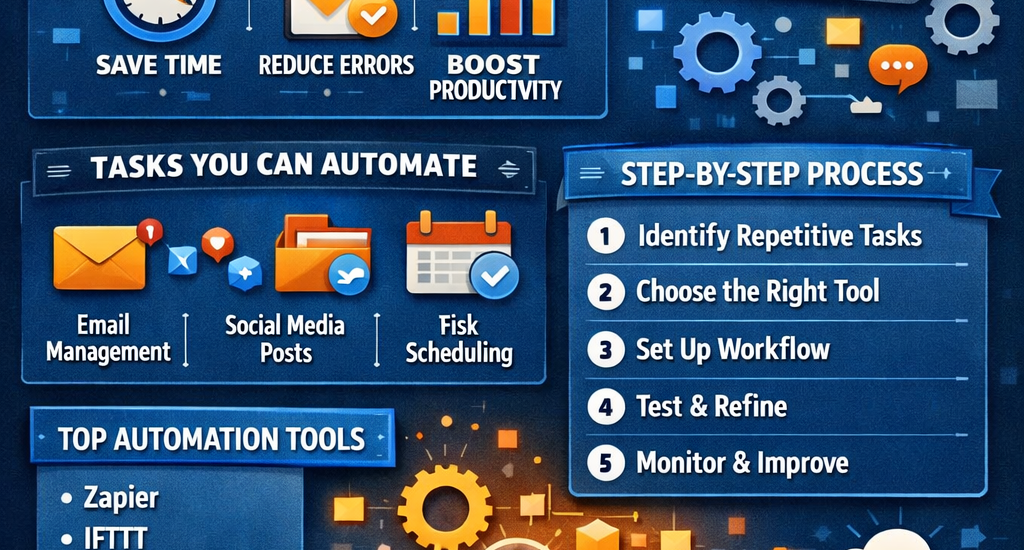
Introduction to Automating Daily Tech Tasks
In today’s fast-paced digital world, it’s easy to feel overwhelmed by the sheer number of repetitive tech tasks we perform every day. From managing emails and scheduling meetings to organizing files and posting on social media, these small but frequent activities can add up to hours of wasted time each week. Learning how to automate daily tech tasks isn’t just a productivity hack—it’s a necessity for anyone who wants to work smarter, not harder.
Automation, in simple terms, means using technology to perform tasks automatically without constant human intervention. By automating daily tech tasks, you can reduce errors, save time, and focus on more meaningful work. For example, instead of manually moving files from one folder to another or checking emails repeatedly, automation tools can handle these processes in the background, seamlessly and efficiently.
Some key benefits of automating your daily tech activities include:
- Time Savings: Automation can perform repetitive tasks in seconds that would take humans minutes or even hours.
- Consistency and Accuracy: Automated workflows follow precise rules, which reduces human error.
- Improved Productivity: By delegating routine tasks to automation, you free your time for strategic thinking and creative work.
- Cross-Platform Efficiency: Many automation tools can integrate multiple apps, allowing tasks to flow between your email, cloud storage, social media, and task management tools effortlessly.
Example: Imagine receiving 50 email attachments daily. Instead of manually downloading, renaming, and storing each file, you can create an automated workflow that saves all attachments directly to your cloud storage, sorts them into folders, and even sends a confirmation email. This simple automation can save you hours each week.
Automation is not just for tech experts. With modern tools like Zapier, IFTTT, and AI-powered assistants, even beginners can automate daily tech activities without writing a single line of code. From personal productivity hacks to business-level workflows, automation has become accessible and essential for anyone looking to stay efficient in a digital-first world.
In this guide, we’ll explore how to automate daily tech tasks step by step. You’ll learn about the most common tasks that can be automated, the tools you need, practical examples, and best practices to get started quickly and safely. Whether you’re a student, entrepreneur, or professional, by the end of this post, you’ll have a clear roadmap for simplifying your digital life and reclaiming valuable time.
Benefits of Automating Daily Tech Tasks
Automating your daily tech tasks can transform the way you work, freeing up time, reducing mistakes, and increasing efficiency. Whether you’re managing emails, scheduling meetings, or handling repetitive data entry, automation offers tangible benefits that can improve both personal productivity and business performance. Let’s dive into the key advantages.
1. Save Time Every Day
Time is one of the most valuable resources, and repetitive tasks often eat away at it unnoticed. Studies show that knowledge workers spend up to 28% of their workweek on repetitive tasks, such as entering data, sending follow-ups, or organizing files. By automating these tasks, you can reclaim hours each week.
Example: Using an automation tool like Zapier to move email attachments directly to cloud storage can save you 15–30 minutes daily, which adds up to over 6 hours per month.
2. Reduce Errors and Mistakes
Manual work is prone to human error, especially for repetitive or complex tasks. Automation ensures consistent, rule-based execution, eliminating mistakes that could otherwise cause delays or extra work.
Case Study: A company that automated invoice processing reduced manual errors by 75%, leading to faster payment cycles and fewer client complaints.
3. Increase Productivity and Focus
When automation handles the repetitive parts of your workflow, you can focus on tasks that require creativity, strategy, and critical thinking. Instead of spending time on mundane processes, you can focus on work that drives real results.
Example: Automating social media posting frees marketing teams to create higher-quality campaigns and engage with audiences more effectively.
4. Streamline Workflow Across Devices and Platforms
Many people use multiple apps daily—email, cloud storage, CRM, task management, and social media. Automation tools allow these platforms to communicate with each other seamlessly, creating a smooth workflow without constant manual intervention.
Example: An automated workflow can save new customer data from a form submission directly into a CRM, trigger a welcome email, and update a Google Sheet—all without lifting a finger.
5. Enhance Collaboration for Teams
Automation isn’t just about individual productivity—it improves team efficiency as well. Automated notifications, shared task assignments, and synced data across apps ensure everyone is on the same page and reduces bottlenecks.
Fact: Teams using automation for task management report 30% faster project completion rates and improved accuracy in reporting and communication.
Quick Table: Key Benefits of Daily Tech Task Automation
| Benefit | Impact | Example |
|---|---|---|
| Time Savings | Hours saved per week | Auto-save email attachments |
| Reduce Errors | Fewer mistakes | Automated invoice processing |
| Increase Productivity | Focus on meaningful work | Free time for strategic planning |
| Workflow Efficiency | Smooth cross-platform processes | Form submission → CRM → email → spreadsheet |
| Team Collaboration | Faster, more coordinated work | Automated notifications and task assignments |
In short, automating daily tech tasks isn’t just a convenience—it’s a strategic move that improves your efficiency, accuracy, and productivity. By leveraging automation, both individuals and teams can get more done with less effort, reduce stress, and focus on higher-value activities.
Common Daily Tech Tasks You Can Automate
One of the most practical steps in learning how to automate daily tech tasks is understanding which tasks are worth automating. Many people focus on high-impact, repetitive tasks—those that take time, are error-prone, or occur multiple times a day. Below are some of the most common daily tech tasks you can automate, along with examples and tools.
1. Email Management
Emails are one of the biggest time sinks for professionals. Automating your email workflow can save hours every week.
Tasks to Automate:
- Sorting Emails: Automatically move emails into folders based on sender, subject, or keywords.
- Auto-Reply: Set up automatic replies for common questions or when you’re away.
- Newsletter Unsubscribing: Automatically filter and unsubscribe from irrelevant newsletters.
Tools: Gmail filters, Outlook Rules, Zapier
Example: A marketing professional receives hundreds of emails daily. By creating filters and auto-labeling systems, they can reduce inbox clutter and prioritize only critical emails, saving 30–60 minutes per day.
2. Social Media Posting
Posting consistently across platforms can be time-consuming. Automation allows you to schedule and cross-post content without manual intervention.
Tasks to Automate:
- Schedule posts in advance
- Share content across multiple platforms automatically
- Monitor engagement notifications
Tools: Buffer, Hootsuite, Later, Zapier
Example: A small business can schedule a week’s worth of posts in one sitting, freeing up time to engage with followers and respond to comments in real time.
3. File Organization
Managing files and documents is a repetitive yet crucial task. Automating file workflows can prevent disorganization and data loss.
Tasks to Automate:
- Automatically move downloaded files to specific folders
- Rename files based on content or date
- Backup files to cloud storage
Tools: Dropbox, Google Drive with Zapier, Windows Task Scheduler, Mac Automator
Example: Automatically moving all PDF invoices received via email into a dedicated folder and naming them by date reduces manual sorting by 15–20 minutes daily.
4. Calendar and Task Management
Scheduling and task tracking often take up mental bandwidth. Automation can handle reminders, scheduling, and recurring tasks seamlessly.
Tasks to Automate:
- Schedule recurring meetings automatically
- Set reminders for deadlines and follow-ups
- Sync tasks across multiple apps
Tools: Google Calendar, Microsoft Outlook, Todoist, Notion
Example: A manager can automatically sync tasks from emails into a to-do list and set reminders for follow-ups, reducing missed deadlines.
5. Data Entry and Reporting
Data entry is repetitive, tedious, and prone to human error. Automation ensures accurate, real-time data collection.
Tasks to Automate:
- Update spreadsheets automatically
- Generate daily/weekly reports without manual input
- Collect data from multiple sources
Tools: Microsoft Excel Macros, Google Sheets with App Scripts, Zapier
Example: A sales team automates lead tracking by creating workflows that pull data from email inquiries into CRM and spreadsheet reports, cutting manual work by 50%.
6. Device Maintenance
Even your devices can benefit from automation. Regular maintenance tasks can be scheduled to avoid slowdowns and errors.
Tasks to Automate:
- Software updates
- Disk cleanup and cache clearing
- Automatic backup of critical files
Tools: Windows Task Scheduler, Mac Automator, CCleaner, Backup software
Example: Setting up a weekly automatic backup of all documents ensures peace of mind and prevents data loss in case of hardware failure.
Quick Table: Examples of Daily Tech Tasks to Automate
| Task Category | Automation Example | Tools |
|---|---|---|
| Auto-sort emails, set auto-replies | Gmail Filters, Outlook Rules | |
| Social Media | Schedule and cross-post | Buffer, Hootsuite |
| File Management | Auto-move and rename files | Dropbox, Zapier |
| Calendar & Tasks | Auto-schedule recurring tasks | Google Calendar, Todoist |
| Data Entry & Reporting | Auto-generate spreadsheets | Excel Macros, Google Apps Script |
| Device Maintenance | Auto-backup & updates | Windows Task Scheduler, CCleaner |
By automating these common daily tech tasks, you can save significant time, reduce stress, and improve consistency, all while keeping your workflows organized. Even small automations add up to hours of reclaimed time every week, helping you focus on higher-value activities.
Tools to Automate Daily Tech Tasks
Knowing how to automate daily tech tasks is only half the battle; choosing the right tools makes all the difference. There are tools for beginners who want simple automation without coding, advanced options for power users, and AI-powered solutions that can take automation to the next level. Below, we break down the best tools for each category and how they can help you save time.
1. Automation Software for Beginners
If you’re new to automation, beginner-friendly tools are the perfect place to start. These tools allow you to create workflows with a few clicks, often with pre-built templates.
Top Tools:
- Zapier: Connects over 5,000 apps, like Gmail, Slack, Trello, and Google Sheets. Ideal for automating email workflows, file storage, and notifications.
- IFTTT (If This Then That): Lets you create simple “if this, then that” automations for apps, smart devices, and services. Great for home automation and basic work tasks.
- Microsoft Power Automate: Built for Microsoft 365 users, automates workflows between apps like Outlook, Teams, SharePoint, and Excel.
Example Workflow:
Use Zapier to automatically save email attachments to Google Drive and notify you on Slack when a new file is added. This saves time and prevents files from getting lost.
Tip: Beginner tools usually have drag-and-drop interfaces, meaning no coding is required—perfect for those just starting their automation journey.
2. Advanced Automation Tools
For users comfortable with technical setups, advanced tools provide deeper customization and control over workflows. These tools are ideal for automating complex or large-scale processes.
Top Tools:
- Python Scripts: Automate almost anything on your computer—from web scraping to batch file processing. Python libraries like
pandas(data management) andsmtplib(email automation) are particularly powerful. - Shell Scripting & Cron Jobs: Schedule scripts or commands to run automatically on macOS or Linux. Useful for backups, server maintenance, and scheduled reports.
- Advanced RPA (Robotic Process Automation) tools: Platforms like UiPath and Automation Anywhere allow enterprises to automate large-scale workflows across multiple systems.
Example Workflow:
A finance team uses Python scripts to automatically pull sales data from multiple sources, clean it, and generate weekly reports in Google Sheets, cutting manual data entry time by 75%.
Pro Tip: Advanced automation tools require technical knowledge but can save hundreds of hours annually when implemented effectively.
3. AI-Powered Automation Tools
Artificial intelligence has brought automation to the next level. AI-powered tools don’t just perform repetitive tasks—they can make decisions, optimize processes, and learn over time.
Top Tools:
- AI Content Generators (e.g., ChatGPT, Jasper.ai): Automate content creation for blogs, emails, and social media.
- AI Chatbots (e.g., Intercom, Drift): Automate customer support and lead generation.
- AI Scheduling Assistants (e.g., x.ai, Calendly): Automatically schedule meetings by learning preferences and checking participant availability.
Example Workflow:
An e-commerce company uses an AI chatbot to answer customer questions 24/7. Meanwhile, AI tools generate social media posts and personalized email campaigns, freeing up marketing teams to focus on strategy.
Fact: AI automation can increase efficiency by 40–60% in marketing, customer support, and content management, according to recent industry reports.
4. Built-in Automation Features
Many apps and operating systems come with built-in automation features, which are often overlooked but extremely effective for everyday tasks.
Examples:
- Gmail Filters & Rules: Automatically sort, label, or forward emails.
- iOS Shortcuts / Android Automation Apps: Automate repetitive smartphone actions like sending messages, opening apps, or setting reminders.
- Windows Task Scheduler / Mac Automator: Schedule tasks like software updates, file organization, or launching applications at specific times.
Example:
A user sets up an iOS Shortcut to automatically log their work hours in a Google Sheet every day at 9 AM, eliminating manual tracking.
Quick Comparison Table: Automation Tools
| Tool Type | Popular Tools | Best For | Complexity Level |
|---|---|---|---|
| Beginner | Zapier, IFTTT, Power Automate | Simple workflows, app integrations | Low |
| Advanced | Python, Shell Scripts, UiPath | Large-scale processes, enterprise automation | High |
| AI-Powered | ChatGPT, Jasper.ai, AI chatbots | Content creation, intelligent decision-making | Medium-High |
| Built-in Features | Gmail Rules, iOS Shortcuts, Mac Automator | Personal productivity, device-specific tasks | Low |
By choosing the right tools for your skill level and goals, you can make automation practical, efficient, and scalable. Starting with beginner-friendly tools is ideal, but as you grow more confident, integrating advanced or AI-powered solutions can revolutionize your workflows.
Step-by-Step Guide to Automating Your Daily Tech Tasks
Understanding how to automate daily tech tasks is one thing, but implementing it effectively is another. Below is a comprehensive, step-by-step guide to help you start automating workflows efficiently and safely.
1. Identify Repetitive Tasks
The first step in automation is recognizing which tasks consume the most time and are repetitive. Focus on tasks that are predictable and rule-based.
How to Identify Tasks:
- Track your daily tech activities for a week. Note how much time you spend on emails, file management, social media, reporting, etc.
- Ask yourself:
- Does this task repeat daily or weekly?
- Is it rule-based or decision-heavy?
- Can a tool perform it reliably?
Example: Checking for email attachments daily and saving them to a cloud folder is repetitive and predictable—perfect for automation.
Tip: Start with high-frequency tasks for maximum time savings.
2. Choose the Right Automation Tool
Once you’ve identified tasks, select a tool that fits your technical skill level and workflow complexity.
Guidelines:
- Beginner: Zapier, IFTTT, Power Automate
- Intermediate/Advanced: Python scripts, Shell scripts, UiPath
- AI-Powered: ChatGPT for content, AI chatbots for customer support
Example: If your task involves moving files between apps like Gmail and Google Drive, Zapier is a beginner-friendly solution that requires no coding.
Pro Tip: Start small. Test one task with a single tool before scaling up.
3. Set Up Automation Workflows
After choosing a tool, the next step is creating the automation workflow. Think of a workflow as a series of actions triggered automatically.
Steps to Create a Workflow:
- Define the trigger: the event that starts the workflow (e.g., receiving an email).
- Define the action(s): what happens automatically (e.g., save attachment to cloud, send notification).
- Test the workflow to ensure it works as expected.
Example Workflow:
- Trigger: New email with attachment received in Gmail
- Actions:
- Save the attachment to Google Drive
- Rename file with current date
- Notify Slack channel that a new file is available
This workflow saves time, ensures consistency, and reduces manual errors.
4. Test and Refine Your Automations
Before fully relying on automation, test it thoroughly. Automation can sometimes misfire, especially when integrating multiple apps.
Testing Tips:
- Run workflows with sample data first.
- Check that files, emails, or notifications are correctly processed.
- Adjust filters, triggers, or actions if necessary.
Example: If a workflow is supposed to save invoices but sometimes misses certain email senders, refine the filters to include all relevant sources.
Pro Tip: Document your workflows for reference, so troubleshooting and scaling are easier.
5. Monitor Performance and Improve
Automation isn’t “set and forget.” Regular monitoring ensures that workflows continue to perform efficiently as your tasks and tools evolve.
Monitoring Tips:
- Track time saved versus manual effort
- Check error logs or missed actions in automation tools
- Adjust workflows based on feedback or changing needs
Example: A small business may review monthly email automation logs to ensure all customer attachments were correctly stored and notifications sent.
Key Insight: Over time, you can expand automation to more complex tasks as confidence and skill grow. Automation is iterative—start simple and scale gradually.
Quick Checklist: Step-by-Step Automation
- Identify repetitive, high-impact tasks
- Choose the right automation tool for your skill level
- Create a workflow with clear triggers and actions
- Test thoroughly before full implementation
- Monitor, refine, and scale your workflows
By following this step-by-step guide, anyone can implement automation workflows that save hours of work each week, reduce errors, and improve overall productivity. Even small automations can lead to significant efficiency gains over time.
Best Practices for Automation
Automating daily tech tasks can save significant time, but poor implementation can lead to errors, security risks, and frustration. Following best practices ensures that your automation is efficient, reliable, and scalable.
1. Start Small and Scale Gradually
It’s tempting to try automating every task at once, but this often leads to confusion and mistakes.
Best Practice:
- Begin with a single high-impact task, like email management or file organization.
- Once confident, gradually add more tasks or integrate additional apps.
Example: Start by automating email attachments to cloud storage before attempting complex workflows like syncing CRM data or scheduling social media posts.
Tip: Incremental automation reduces errors and makes troubleshooting easier.
2. Document Your Automations
Even small automations should be documented clearly so you can track what’s automated, how it works, and troubleshoot if problems occur.
What to Document:
- Workflow description (trigger → actions → results)
- Tools used
- Frequency or schedule
- Any exceptions or limitations
Example: Keep a Google Sheet listing all automation workflows, triggers, and tools. This is especially useful for teams where multiple people rely on the same automation.
3. Keep Security in Mind
Automation often involves sensitive data like emails, financial records, or customer information. Security should always be a priority.
Security Tips:
- Use tools with strong encryption and security protocols
- Limit permissions only to what’s necessary
- Avoid storing sensitive information in unsecured locations
- Monitor automated workflows for unauthorized access
Example: When automating invoice processing, ensure attachments are stored in a secure, access-controlled cloud folder rather than a public directory.
4. Avoid Over-Automation
Not every task should be automated. Some tasks require human judgment, creativity, or emotional intelligence. Over-automation can reduce flexibility and quality.
Best Practice:
- Automate repetitive, predictable tasks
- Leave decision-based or strategic tasks to humans
Example: While you can automate email sorting, responding to client inquiries often requires human attention to maintain quality and relationship building.
5. Regularly Update Your Automation Workflows
Apps, tools, and digital processes change over time. Automation that works today may fail tomorrow if updates or new features are released.
Best Practice:
- Check automation workflows regularly (e.g., monthly)
- Update triggers, actions, or integrations as apps evolve
- Test workflows after software updates
Example: A social media automation that posts images may fail if the platform updates its API. Reviewing workflows ensures everything runs smoothly.
6. Monitor Performance and Measure Impact
Automation should deliver measurable benefits. Tracking its impact helps optimize workflows and justify investment.
Metrics to Track:
- Time saved per task or workflow
- Reduction in errors
- Increased productivity or output
- Team satisfaction or adoption rates
Example: By tracking workflow completion times and error rates, a team can see that automating file transfers saves 2 hours per week per employee and reduces mistakes by 80%.
Quick Summary: Best Practices Checklist
- Start small, scale gradually
- Document all workflows clearly
- Keep security a priority
- Avoid over-automation of decision-based tasks
- Regularly update and test workflows
- Monitor performance and measure impact
By following these best practices, you can ensure that your automation efforts are efficient, secure, and sustainable. Proper implementation not only saves time but also creates workflows that are reliable, adaptable, and scalable over the long term.
Common Mistakes When Automating Daily Tech Tasks
Even with the best tools and intentions, automation can go wrong if not planned carefully. Understanding common mistakes helps you avoid errors, inefficiencies, and frustration while maximizing the benefits of automating daily tech tasks.
1. Automating Too Much Too Soon
One of the biggest mistakes is trying to automate everything at once. Overloading your workflow with multiple complex automations can create chaos, make troubleshooting difficult, and lead to more errors than it saves.
Best Practice:
- Start with one or two high-impact tasks.
- Scale gradually as you gain confidence and understand your tools.
Example: Automating email, social media, and file backups simultaneously may cause confusion if one workflow fails, leading to missed files or duplicate posts.
2. Ignoring Security Risks
Automation often interacts with sensitive information, from emails and financial records to customer data. Ignoring security considerations can lead to data breaches or loss.
Common Security Mistakes:
- Using unsecured apps for storing sensitive data
- Giving automation tools unnecessary access to accounts
- Failing to monitor automated workflows for errors or unauthorized access
Example: An automation script that saves client files to a public cloud folder could expose confidential data. Always use secure, permission-controlled storage.
3. Overcomplicating Workflows
Complex workflows can be tempting, but the more steps and integrations involved, the higher the chance of failure. Overcomplicated automations can become unmanageable and prone to errors.
Best Practice:
- Keep workflows simple and focused on one main goal per automation
- Break complex processes into smaller, manageable automations
Example: Instead of creating a single automation that handles email attachments, renames files, sends Slack notifications, and updates CRM entries all at once, create separate, smaller automations for each task.
4. Not Monitoring Automation Performance
Automation isn’t “set and forget.” Many mistakes occur because workflows run unchecked, leading to missed tasks or errors going unnoticed.
Best Practice:
- Check logs or notifications regularly
- Review workflow outcomes weekly or monthly
- Adjust and refine workflows as needed
Example: A social media automation that posts content without review may schedule the wrong content or post at suboptimal times. Monitoring ensures posts stay accurate and relevant.
5. Relying Solely on Automation
While automation is powerful, relying entirely on it can cause issues. Some tasks require human judgment, creativity, and problem-solving that automation cannot replicate.
Best Practice:
- Use automation for repetitive, predictable tasks
- Retain human oversight for decision-heavy tasks
Example: Automating email replies to simple questions is fine, but customer complaints should be handled personally to ensure empathy and quality service.
Quick Table: Common Automation Mistakes and How to Avoid Them
| Mistake | Impact | How to Avoid |
|---|---|---|
| Automating too much at once | Confusion, workflow failure | Start small and scale gradually |
| Ignoring security | Data breaches, loss | Use secure tools, limit permissions |
| Overcomplicating workflows | Errors, unmanageable automations | Keep workflows simple and modular |
| Not monitoring performance | Missed tasks, unnoticed errors | Regularly check logs and outcomes |
| Relying solely on automation | Reduced quality, missed judgment | Use human oversight where needed |
By avoiding these common mistakes, you can ensure that your automation of daily tech tasks remains efficient, reliable, and secure. Learning from these pitfalls early can save time, reduce stress, and make your workflows more effective in the long term.
Frequently Asked Questions (FAQs) About Automating Daily Tech Tasks
Automation can be intimidating for beginners, and even experienced users often have questions about best practices, tools, and applications. Here are the most common questions people ask when learning how to automate daily tech tasks.
1. How can beginners automate daily tech tasks easily?
Beginners should start with simple, user-friendly tools that don’t require coding. Tools like Zapier, IFTTT, and Microsoft Power Automate allow users to create workflows using templates or drag-and-drop interfaces.
Tips for Beginners:
- Identify one repetitive task, like saving email attachments or scheduling social media posts.
- Use pre-built templates to set up automation quickly.
- Test the workflow before fully relying on it.
Example: Automate the process of saving Gmail attachments to Google Drive using a Zapier template.
2. Can I automate tasks without coding skills?
Absolutely. Many automation tools are designed for non-technical users. Platforms like Zapier, IFTTT, and built-in app features (like Gmail filters or iOS Shortcuts) allow automation without a single line of code.
Tip: If your needs become more complex, you can gradually explore tools like Python scripts or advanced RPA platforms.
3. What is the difference between simple automation tools and AI-powered automation?
- Simple automation tools (Zapier, IFTTT) perform rule-based tasks—“if this happens, do that.” They are great for repetitive, predictable tasks.
- AI-powered automation tools (ChatGPT, Jasper.ai, AI chatbots) can make decisions, optimize workflows, and generate content. AI tools are ideal for tasks that involve learning patterns, personalization, or content creation.
Example:
- Zapier can automatically save invoices from email to a spreadsheet.
- An AI tool can analyze sales data trends and generate weekly reports or marketing emails automatically.
4. Which daily tech tasks save the most time when automated?
Some of the highest-impact tasks include:
- Email management (sorting, auto-replies)
- File organization and backups
- Social media posting and scheduling
- Data entry and reporting
- Calendar and task management
Fact: Automating these tasks can save 2–5 hours per week for individuals and much more for teams or businesses.
5. How do I prevent errors in automated workflows?
To minimize errors:
- Test workflows with sample data before fully deploying them
- Monitor performance regularly and adjust triggers or actions as needed
- Keep workflows simple and avoid overcomplicating them
- Document workflows so you know how they function
Example: Reviewing monthly automation logs ensures files are saved correctly and notifications are sent without issues.
6. Are automation tools safe to use with sensitive information?
Yes, if best practices are followed:
- Use tools with strong encryption
- Limit permissions to only what’s necessary
- Store sensitive data in secure, access-controlled locations
- Regularly monitor automated workflows for anomalies
Example: Use Zapier with OAuth 2.0 authentication to securely connect Gmail or Google Drive for automated workflows.
7. Can automation replace humans entirely?
No. Automation is best for repetitive, predictable tasks. Tasks that require creativity, empathy, or complex decision-making still require human input.
Tip: Use automation as a productivity amplifier, not a replacement for human judgment.
8. How much time can I realistically save with automation?
Time saved depends on task complexity and frequency. On average:
- Simple workflows (email sorting, file backups): 1–2 hours/week
- Intermediate workflows (social media scheduling, report generation): 3–5 hours/week
- Advanced workflows or AI-powered automation (data analysis, content generation, multi-step workflows): 5–15+ hours/week
Fact: Businesses that implement automation for multiple workflows report up to 40% productivity gains.
Conclusion: Start Automating Your Daily Tech Tasks Today
Automating daily tech tasks is no longer a luxury—it’s a practical necessity for anyone looking to save time, reduce errors, and boost productivity. From managing emails and organizing files to scheduling social media posts and generating reports, automation allows you to focus on higher-value work while routine tasks run seamlessly in the background.
Throughout this guide, we’ve covered:
- What automation is and why it’s important for personal and professional productivity
- The benefits of automating daily tech tasks, including time savings, error reduction, and workflow efficiency
- Common tasks you can automate, from email management to device maintenance
- Tools for automation, ranging from beginner-friendly platforms like Zapier and IFTTT to advanced options like Python scripts and AI-powered assistants
- Step-by-step guidance on how to implement automation workflows, including identifying tasks, selecting tools, testing, and monitoring
- Best practices and common mistakes to avoid, ensuring your automation is reliable, secure, and sustainable
- FAQs that answer key questions about automation tools, security, and time savings
Key Takeaways:
- Start small. Automate one task at a time to build confidence and reduce errors.
- Choose the right tools for your skill level—beginner, advanced, or AI-powered.
- Monitor and refine your workflows regularly to ensure efficiency and accuracy.
- Use automation to amplify human productivity, not replace human judgment.
- Keep security in mind, especially when dealing with sensitive data.
Even simple automations, like moving files from email to cloud storage or scheduling weekly social media posts, can save hours each week. As you gain experience, you can implement more complex workflows, ultimately transforming the way you work.
Call to Action: Start today by choosing one repetitive task in your daily tech routine and automating it. Once you see the time and stress saved, you’ll likely want to expand automation across your entire workflow. Remember, the goal is to work smarter, not harder, and automation is the key to achieving that.